
Mastering Kiosk Performance: Why Your Self-Service Screen is Lagging?
Dec 10, 2025In the world of self-service, a smooth, instantaneous touch screen experience isn't a luxury—it's a critical operational necessity. Whether you manage public information kiosks, industrial HMIs (Human-Machine Interfaces), or automated retail terminals, a slow or unresponsive display directly translates to frustrated users, increased transaction abandonment, and higher maintenance costs.
If you’re struggling with persistent screen lag, inaccurate touch points, or the dreaded intermittent unresponsiveness on your self-service machines, this guide provides a deep-dive into the nine primary culprits and offers actionable troubleshooting steps to restore peak performance.
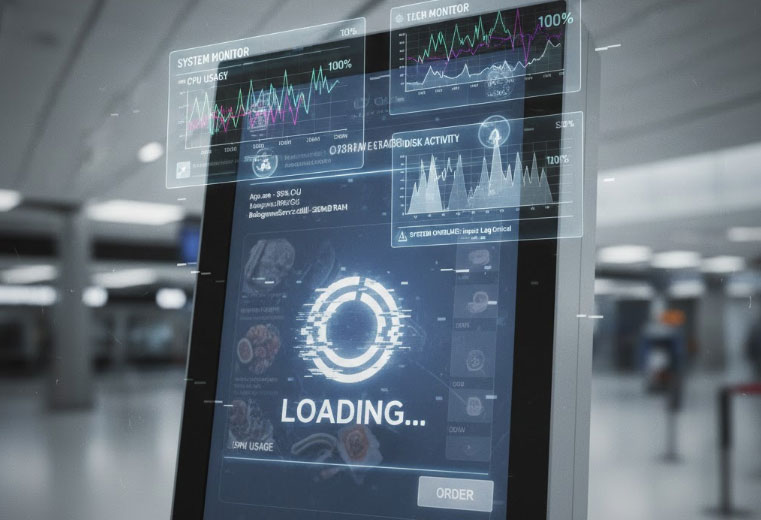
Before diving into complex hardware or software diagnostics, start with the easiest and most overlooked causes of touch screen failure: the physical environment and the screen itself.
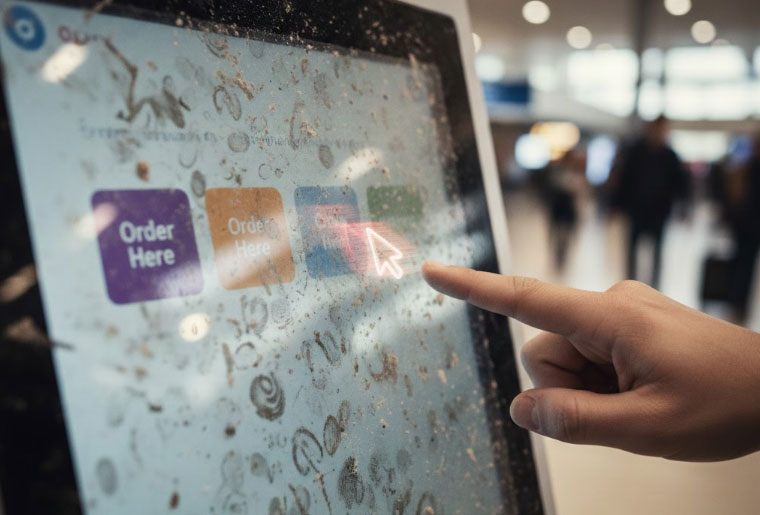
The Problem: Accumulated dust, fingerprints, and sticky residues act as an unintended barrier on the display surface. This interference is particularly problematic for modern Capacitive Touch Screens (PCAP), which rely on registering the minute electrical change caused by human touch. Debris can disrupt this electrical field, resulting in missed taps or a perceived slow response because the touch controller has to work harder to register the input.
The Fix: Implement a strict screen cleaning protocol. Power off the unit and use a gentle, ammonia-free screen cleaner and a soft microfiber cloth. Crucially, pay attention to the screen’s bezel and edges, where dirt and liquid often collect and can obstruct the touch array.
The Problem: Self-service machines often operate in non-climate-controlled environments. Extreme heat (e.g., direct sunlight, poor enclosure ventilation) causes the internal components—the CPU, GPU, and touch controller—to overheat. The system then intentionally slows itself down (known as thermal throttling) to prevent permanent damage, leading to massive performance drops and severe input lag. Similarly, extreme cold can slow the liquid crystals in the LCD panel, causing visual lag.
The Fix: Ensure the enclosure has ample and unobstructed ventilation ports. If the machine is outdoors, consider specialized protective enclosures with active cooling fans or, if budget permits, integrated air conditioning units to maintain an optimal internal operating temperature (usually below $40^\circ \text{C}$).
The Problem: Deep scratches, cracks, or impact damage directly compromises the integrity of the touch panel. For older Resistive Screens, this prevents the internal layers from making contact. On Capacitive Screens, it can break the conductive circuit. This often manifests as specific, non-functional areas—dead zones—or erratic, random inputs.
The Fix: If damage is identified, the solution is typically a touch panel replacement. If the machine is subjected to heavy use or vandalism, consider upgrading to a screen with enhanced durability, such as one featuring IK-rated protective glass.
If the surface is clean and the temperature is stable, the next area to investigate is the internal connectivity and calibration.
The Problem: When a touch is registered in the wrong location (i.e., tapping 'A' registers as 'B'), the screen has lost its calibration. The system is failing to accurately map the physical coordinate of your finger to the corresponding digital coordinate on the display. This is a common issue that makes the system feel incredibly slow and frustrating.
The Fix: The unit needs a touch screen recalibration. Access the device's operating system settings or the touch controller's proprietary utility software to run the calibration sequence. This often involves tapping a series of targets on the screen to reset the accurate touch matrix.
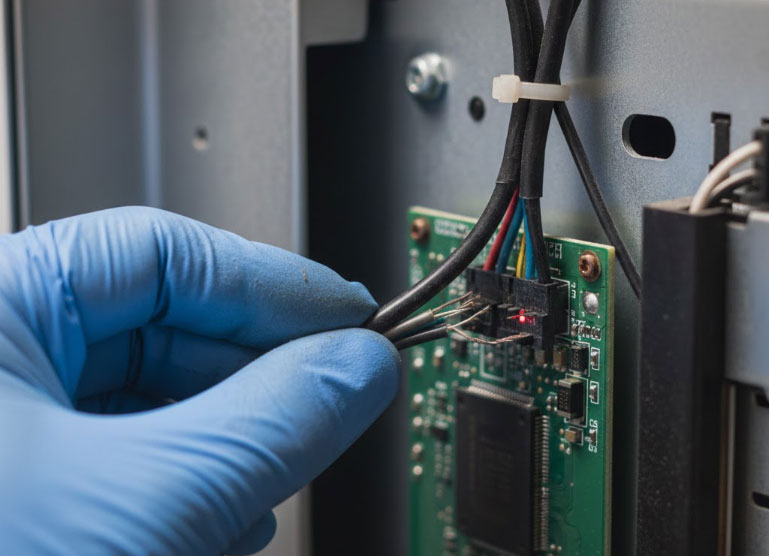
The Problem: Self-service machines are subject to constant handling and vibration. This movement can cause the vital internal cables—connecting the touch controller board to the main PC via USB, serial, or HDMI/DisplayPort—to loosen or the contact pins to become corroded. A loose cable results in intermittent failure, flickering, or highly erratic and unpredictable phantom touches.
The Fix: Perform a physical audit. Power down the machine and carefully inspect and reseat all internal data and power cables, ensuring they are securely fastened to both the host computer and the touch controller.
Finally, the most complex issues often reside in the operating system and the application itself.
The Problem: If the screen only lags when the main service application is running, the app itself is likely consuming too many resources. This could be due to a programming memory leak, inefficient code, or graphically intense animations that push the CPU or RAM to its limit. When the computer's resources are maxed out, it cannot process the touch input buffer in real-time, causing severe input lag.
The Fix: Monitor the system using the Task Manager or system monitor utility to identify the resource-heavy process. If the application is the culprit, a simple system or application restart can temporarily clear the memory. For a long-term solution, the application itself may require optimization or patching.
The Problem: The touch screen driver acts as the crucial translator between the physical touch controller and the operating system. An outdated, corrupt, or incompatible driver (often after a major OS update like a new Windows build) can break this communication link, resulting in erratic behavior or total non-responsiveness.
The Fix: Regularly check the touch screen manufacturer's support portal for the latest driver and firmware updates. Always verify that the driver version explicitly supports your current operating system build. Keeping touch drivers updated is fundamental for device reliability.
The Problem: If the machine runs on a standard general-purpose OS (like Windows or Linux), hidden background processes like automatic updates, antivirus scans, or unnecessary startup programs can drain system resources without the user’s knowledge.
The Fix: Configure the operating system for a "kiosk mode" environment. Disable non-essential services, set OS updates to manual, and ensure that only the single, primary service application is running in the foreground. This dedicates all available CPU and RAM to the critical user interface function.
The Problem: EMI is electronic "noise" generated by nearby external high-power sources (large transformers, motors, or radio transmitters). This noise can induce currents into the screen's cabling or the touch controller itself, leading to erratic, non-repeatable touch input and a perceived failure of the system.
The Fix: Physically relocate the unit away from known sources of high EMI. Ensure the internal cabling is properly shielded and routed away from internal power supplies to minimize noise induction.
Tel / Whatsapp : +86 -15999943922
بريد إلكتروني : nikki@aonpostech.com


© 2026 شنتشن Aonpos التكنولوجيا المحدودة .كل الحقوق محفوظة