Aonpos الكل في مكان واحد
  • Can self-service machines be placed in places with high humidity, such as train stations or near the seaside?
    Can self-service machines be placed in places with high humidity, such as train stations or near the seaside? Dec 26, 2025
    The Ultimate Guide to Deploying Self-Service Kiosks in High-Humidity and Coastal Environments For businesses expanding their digital footprint into high-traffic areas—such as bustling train stations or scenic seaside piers—the environment is the biggest hurdle to hardware longevity. High humidity, salt-laden air, and rapid temperature fluctuations can destroy standard electronics in months. In this guide, we explore the technical requirements for deploying self-service payment kiosks in challenging climates and how to ensure your investment stands the test of time. 1. Understanding the Challenges: Humidity vs. Hardware In environments like underground train stations or coastal boardwalks, humidity levels often exceed 80%. This leads to three primary hardware killers: Electronic Corrosion: Moisture causes "creeping" corrosion on circuit boards, leading to intermittent failures or total system shorts. Condensation & Dew Point: When warm, humid air hits a cool kiosk surface, condensation forms inside. This is particularly dangerous for thermal printers and card readers. Saline Oxidation: For seaside locations, salt spray acts as a catalyst for rust, eating through standard powder-coated steel within a single season. 2. Essential Technical Standards for Humid Environments To combat these issues, hardware must meet specific industrial benchmarks. IP Ratings: The First Line of Defense When selecting a kiosk, look for the Ingress Protection (IP) rating. For high-humidity indoor areas (train stations), an IP54 rating is often sufficient. However, for true outdoor or seaside deployment, IP65 or IP66 is mandatory. This ensures the unit is sealed against both micro-dust and high-pressure water jets (or heavy rain). Material Science: Beyond Standard Steel Standard kiosks use cold-rolled steel. For high-humidity areas, materials must be upgraded: 304/316 Stainless Steel: 316-grade is the "marine grade" standard, containing molybdenum to resist chloride (salt) corrosion. Industrial Powder Coating: A multi-layer outdoor-grade coating provides an additional barrier against moisture. 3. Protecting the "Brain": Internal Climate Control A high-quality self-service kiosk is more than just a metal box; it is a climate-controlled ecosystem. Industrial Dehumidifiers/Heaters: Small internal heating elements keep the internal temperature slightly above the "dew point," preventing condensation from ever forming on the screen or motherboard. Conformal Coating: Leading manufacturers like Aonpostech utilize conformal coating on PCBs. This is a specialized chemical film that waterproofs the electronic components themselves, providing a second layer of protection if moisture does enter the unit. High-Brightness, Anti-Fog Displays: High-humidity often comes with high heat. Industrial screens with optical bonding prevent "fogging" between the glass layers and ensure visibility even in direct sunlight. 4. Maintenance Strategies for Coastal Deployments Even the best-engineered kiosk requires a maintenance plan to combat the elements: Salt Removal: In seaside locations, a monthly wipe-down with fresh water prevents salt crust from building up on ports and sensors. Seal Audits: Every six months, inspect the rubber gaskets and seals. UV rays and humidity can cause seals to crack, compromising the IP rating. Filter Checks: If the kiosk uses fan-based cooling, filters must be cleaned or replaced regularly to maintain airflow. 5. Why Choose Aonpostech for Challenging Environments? At Aonpostech, we specialize in rugged, high-performance self-service payment kiosks designed for diverse global climates. Our kiosks are built with industrial-grade components that offer: Multi-Payment Integration: Secure handling of cash, cards, and QR codes in any environment. Customized Enclosures: Tailored material choices, from reinforced steel to marine-grade finishes. Expert Engineering: Optimized thermal management systems to handle the humidity of a tropical station or the salt air of a coastal pier. Deploying self-service technology in high-humidity areas is entirely possible with the right engineering. By prioritizing IP ratings, material quality, and internal climate control, you can provide 24/7 service to your customers, regardless of the weather. Ready to deploy your next project in a challenging environment? Explore our full range of Self-Service Payment Kiosks and contact our technical team for a custom solution.
  • How to choose a self-service kiosk suitable for your business needs?
    How to choose a self-service kiosk suitable for your business needs? Dec 23, 2025
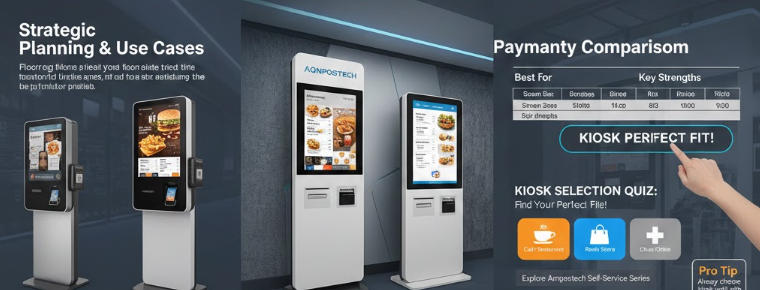
    How to Choose a Self-Service Kiosk: The Ultimate Guide for Your Business In an era where customer speed and efficiency are paramount, implementing a self-service payment kiosk is no longer a luxury—it’s a competitive necessity. Whether you are running a high-traffic restaurant, a boutique retail store, or a medical clinic, the right kiosk can reduce labor costs, eliminate ordering errors, and boost your average transaction value. But with so many options available, how do you choose the right one? This guide answers the most pressing questions businesses face when selecting hardware from industry leaders like Aonpostech. Strategic Planning & Use Cases 1. What are the primary benefits of a self-service kiosk for my business? A kiosk acts as a 24/7 digital employee. Key benefits include: Reduced Wait Times: Customers can order and pay instantly. Increased Revenue: Automated upselling prompts (e.g., "Would you like to add a drink?") typically increase order totals by 20-30%. Labor Efficiency: Staff can focus on order fulfillment and customer service rather than manual data entry. 2. How do I choose between a Floor-standing, Desktop, or Wall-mounted kiosk? The choice depends entirely on your floor plan and traffic: Floor-standing (e.g., Aonpostech APK06): Best for high-traffic lobbies or entrances where you want to capture attention. Desktop/Tabletop: Ideal for small cafes or check-in desks where counter space is limited. Wall-mounted: Perfect for narrow hallways or compact retail environments to save floor space. Hardware & Technical Specifications 3. What screen size is most effective for customer engagement? Size matters based on your industry. 15.6" to 21.5": Standard for retail check-out or bill payment terminals. 27" to 32" (e.g., Aonpostech APK07): Recommended for restaurants and fast-food chains where high-resolution food photography is used to drive sales. 4. What is the advantage of a "Modular" kiosk design? Aonpostech’s APK06 series is built on a groundbreaking modular philosophy. Unlike "all-in-one" units that are hard to repair, a modular design allows you to: Swap out printers or scanners without replacing the entire unit. Customize the hardware (adding NFC, cameras, or specialized card readers) to meet unique business needs. Lower long-term maintenance costs through easy-access components. 5. Windows vs. Android: Which operating system should I choose? Android (e.g., RK3568): Cost-effective, highly stable, and ideal for single-purpose apps like ordering or ticketing. Windows (e.g., Intel i3/i5): Necessary if you need to integrate with complex legacy POS systems or require heavy-duty multitasking. Payments & Security 6. Can these kiosks handle multiple payment methods? Yes. Modern kiosks must be versatile. Aonpostech kiosks support integrated 80mm thermal printers, NFC readers for Apple/Google Pay, and secure housing for EMV chip card readers to ensure PCI-DSS compliance and secure transactions. 7. Are self-service kiosks durable enough for public use? Durability is critical. Look for kiosks with capacitive touch screens (like those in the PK1851 series) which are more responsive and scratch-resistant than older resistive screens. Many Aonpostech models also feature waterproof designs to handle the spills and cleaning routines of the F&B industry. Implementation & Support 8. Does Aonpostech offer customization (OEM/ODM)? Yes. One of the biggest hurdles in kiosk adoption is "fitting in." Aonpostech specializes in OEM/ODM services, allowing businesses to customize the color, branding, and hardware modules (CPU, RAM, Storage) to align perfectly with their corporate identity and software requirements. 9. How easy is it to maintain a self-service terminal? By choosing a terminal with a modular panel PC design, maintenance becomes a "plug-and-play" task. Modular kiosks allow for faster on-site repairs, ensuring your business never suffers from extended downtime. Summary Comparison: Aonpostech Kiosk Models Feature APK06 (Modular) APK07 (Ordering) APK1851 (Bill Payment) Best For Versatile Retail/Custom Fast Food / Restaurants Bill Pay / Invoicing Screen Sizes 15.6" - 23.8" 21.5" - 32" 15.6" - 23.6" Key Strength Modular Component Swapping Visual Impact & Upselling Slim All-in-One Design Mounting Floor / Desktop Floor / Wall Desktop / Floor Ready to Upgrade Your Business Efficiency? Choosing the right kiosk is a balance between hardware reliability and customer experience. At Aonpostech, we provide high-performance, customizable self-service solutions designed to grow with your business. Explore the Aonpostech Self-Service Series
  • Why is There Such a Huge Price Difference in Self-Service Kiosks?
    Why is There Such a Huge Price Difference in Self-Service Kiosks? Dec 22, 2025
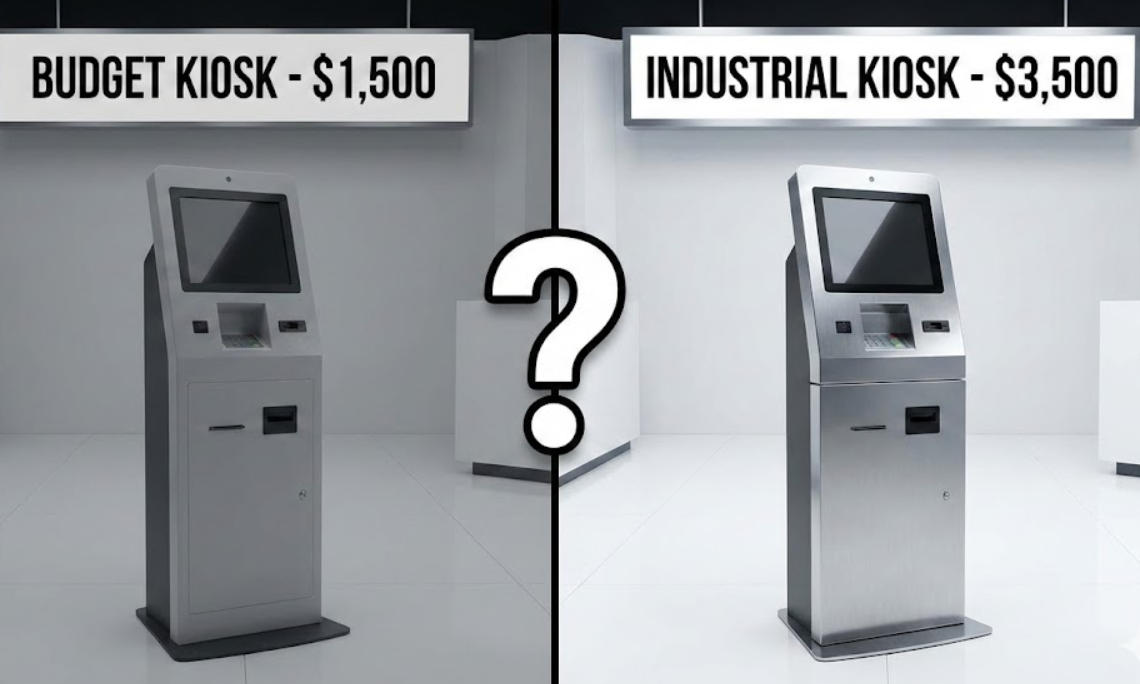
    In the world of self-service technology, two kiosks can look identical on a website but differ in price by thousands of dollars. For a business owner, this price gap can be confusing. Is the expensive model a "premium markup," or is the cheap model a "ticking time bomb"? The reality is that the purchase price is only 20% of the total cost of ownership (TCO). To understand the price difference, we must look under the hood at the engineering, component grade, and long-term reliability. 1. Industrial-Grade vs. Consumer-Grade Hardware The most significant price driver is the "Brain" and the "Face" of the kiosk. The Processor (PC): Low-cost kiosks often use consumer-grade Android sticks or basic Atom processors designed for light home use. Professional models, like the Aonpostech AP022, offer scalable Intel Core i3/i5/i7 or high-performance Rockchip (RK3568) processors. These are built for 24/7 "always-on" operation, handling thousands of transactions without overheating or lagging. The Touch Screen: A cheap kiosk may use a resistive screen (pressure-based) or a low-brightness panel. Premium kiosks utilize 10-point capacitive touch screens with high-definition resolution. They are designed for high-traffic durability and remain responsive even after millions of touches. 2. Component Reliability: The "Sum of Parts" A kiosk is only as reliable as its weakest peripheral. Printers & Scanners: High-quality kiosks integrate industrial thermal printers (like the 58mm/80mm units found in Aonpostech models) and high-sensitivity QR scanners. These "industrial-grade" components are designed to prevent paper jams and read cracked phone screens—issues that plague "budget" kiosks and frustrate customers. Modularity: Why does modularity affect price? Modular designs, such as the PK1851 series, allow for easy maintenance. If a printer fails, you swap the module in minutes. In a cheap, "all-in-one" glued unit, a single failed component often means replacing the entire machine. 3. Build Quality and Thermal Management Materials: Budget kiosks often use thin plastic or low-grade sheet metal. High-end models use Aluminum Alloy and ABS Plastic, which offer superior heat dissipation and physical security. Internal Engineering: Electronics generate heat. Professional kiosks are engineered with internal airflow systems. Without this, the CPU will "throttle" (slow down) or fail prematurely, leading to expensive downtime. 4. Safety Certifications and Compliance This is where many low-cost suppliers cut corners. To sell a kiosk legally and safely in global markets, it must pass rigorous testing. Certifications: Professional hardware carries CE, FCC, LVD, and CCC marks. These ensure the device won't cause electrical fires, interfere with other electronics, or leak data. Security: High-value kiosks utilize industry-leading encryption for payment privacy. Saving $500 on a non-certified kiosk can lead to millions in liability if a security breach occurs. Comparison: The True Cost of a Kiosk (3-Year View) Feature Budget Kiosk ($) Aonpostech Industrial Kiosk ($$$) PC Lifecycle 1–2 Years 5–7 Years Operating Time 8 Hours/Day 24/7/365 Maintenance High (Frequent Jams/Crashes) Low (Modular/Industrial Parts) Compliance Often Missing CE, FCC, LVD, CCC 3-Year TCO Very High (Repairs + Downtime) Low (Stable Performance) 5. Frequently Asked Questions (FAQ) Q: Why is a 24-inch screen more expensive than a 15-inch screen? Beyond the glass size, larger screens require more powerful backlighting and more robust mounting brackets to handle the weight. Aonpostech offers sizes from 15.6 to 23.8 inches to fit different space and visibility requirements. Q: Can I just use a consumer tablet as a kiosk? While tempting, consumer tablets are not designed for constant power. Their batteries can swell, and they lack the I/O ports (Serial, LAN, multiple USBs) needed to connect industrial printers and scanners securely. Q: Does the operating system affect the price? Yes. Professional kiosks support Windows 10 Pro, IoT, or Android 11, which require licensing but offer the security and remote management tools businesses need to manage a "fleet" of machines. Conclusion: Value Over Price When choosing a self-service payment kiosk, the cheapest option often becomes the most expensive over time due to lost revenue and repair costs. By investing in industrial-grade hardware with modular designs and global certifications, you ensure your business stays "open" every minute of the day. Ready to upgrade your customer experience? Explore the Aonpostech Kiosk Range for high-performance, customizable solutions.
  • What are the differences between outdoor and indoor self-service kiosks?
    What are the differences between outdoor and indoor self-service kiosks? Dec 21, 2025
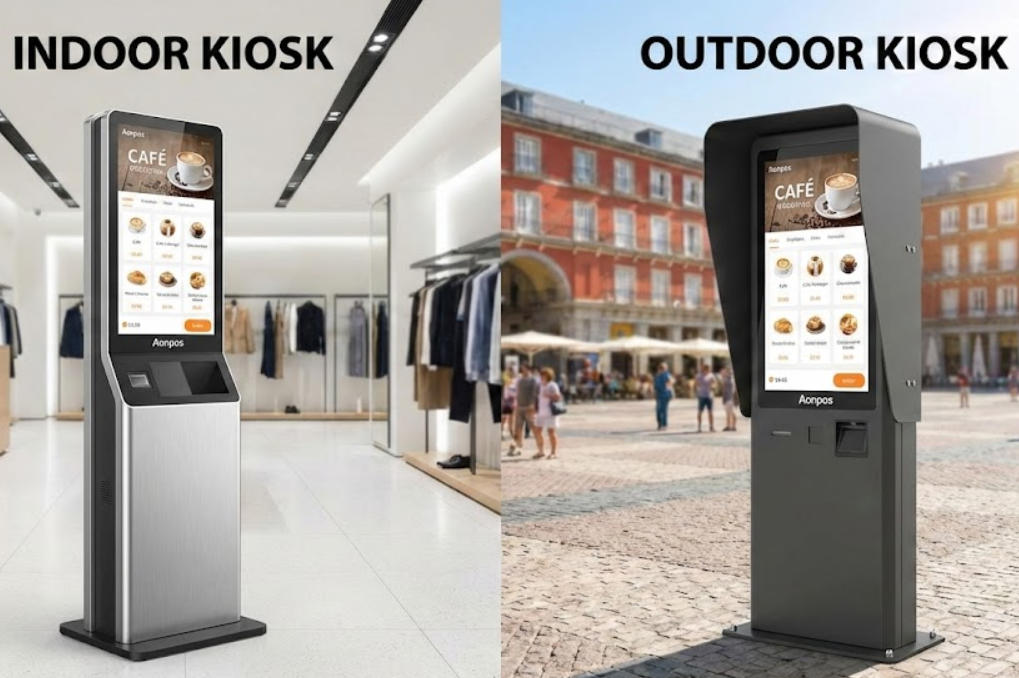
    Outdoor vs. Indoor Self-Service Kiosks: 5 Critical Differences You Need to Know The global shift toward automation is no longer a trend—it’s the standard. From fast-food chains to retail giants, businesses are deploying self-service payment kiosks to slash wait times and reduce labor costs. However, one of the most expensive mistakes a business owner can make is choosing the wrong environment for their hardware. Should you invest in an indoor kiosk or a rugged outdoor model? While they may look similar on the surface, the internal engineering is worlds apart. Based on the latest innovations from Aonpos, here are the five critical differences between indoor and outdoor self-service kiosks. 1. Weatherproofing and IP Ratings The most obvious difference is environmental protection. An indoor kiosk, like the Aonpos AP022, is designed for climate-controlled environments like malls or restaurants. It uses high-quality aluminum alloy and ABS plastic to maintain a sleek, professional look. In contrast, an outdoor kiosk must withstand rain, snow, and dust. High-end models feature an IP65 rating, meaning they are completely dust-tight and protected against water jets. Aonpos has pioneered "modular waterproof" designs that allow these machines to operate in demanding "Coffee Pop-Up" or outdoor market scenarios without risking internal circuitry. 2. Display Visibility (Nits and Brightness) Have you ever tried to read your phone screen in direct sunlight? It’s nearly impossible. Indoor Kiosks: Usually feature a brightness of 250 to 300 nits, which is perfect for indoor lighting. Outdoor Kiosks: Require high-brightness panels, often exceeding 1500 nits, paired with anti-glare tempered glass. Aonpos utilizes true-flat 10-point capacitive touch screens across their lineup, ensuring that whether your kiosk is a 15.6-inch desktop unit or a 32-inch floor-standing giant, the touch response remains fluid and the visuals remain crisp. 3. Thermal Management Systems Indoor environments are stable, usually staying between 0°C and 40°C. Outdoor kiosks, however, face the "greenhouse effect"—sunlight hitting the glass can cook the internal CPU. To combat this, outdoor units often include internal HVAC systems or advanced fan cooling. Aonpos hardware is engineered for 24/7 commercial use, featuring a "Watchdog Timer" (WDT) and industrial-grade processors (from Intel J4125 to high-performance i5/i7) that maintain stability even when temperatures fluctuate between -15°C and 50°C. 4. Security and Vandalism Resistance Indoor kiosks are often monitored by staff. Outdoor kiosks are often left unattended overnight. Outdoor models require: Thicker Steel Enclosures: To prevent forced entry. Security Locks: Multi-point locking systems for cash and component access. Bolted Bases: To ensure the unit cannot be moved. Aonpos offers modular architecture, allowing businesses to choose between lightweight stands for indoor retail or heavy-duty, reinforced bases for public squares. 5. Modular Flexibility Whether indoor or outdoor, your kiosk needs to grow with your business. This is where Aonpos excels. Their "Lego-like" modular design allows you to swap components easily: Payment: Integrate NFC, QR code scanners, or traditional card readers. Printing: Choose between 58mm or 80mm thermal printers with auto-cutters. Verification: Add ToF cameras for facial recognition or ID scanners. The Verdict: Which One Do You Need? Choose Indoor if you are running a restaurant, hotel lobby, or retail checkout where the environment is stable and space is a premium. Choose Outdoor if you are offering 24/7 services such as ticketing, drive-thru ordering, or outdoor pop-up events. Ready to Transform Your Business? Aonpos provides factory-direct, customizable self-service solutions designed to improve efficiency and customer satisfaction. Whether you need a wall-mounted indoor terminal or a rugged outdoor payment kiosk, our modular systems are built to perform. Explore the Aonpos Kiosk Range Today FAQ Section (Optimized for Google Featured Snippets) Q: Can I use an indoor kiosk in a semi-outdoor area? A: It is not recommended unless the area is completely protected from humidity and temperature extremes. Using an indoor kiosk in a semi-outdoor setting can void warranties and lead to screen fogging or hardware failure. Q: What is the best screen size for a self-service kiosk? A: For retail and restaurants, 21.5-inch and 27-inch screens are the industry standard as they offer the best balance between visibility and space-saving. Q: Are Aonpos kiosks compatible with Windows and Android? A: Yes. Aonpos kiosks support Android 7.1 through 11 and Windows 7, 10, and 11, allowing for seamless integration with your existing POS software.
  • How can self-service kiosks be configured with software mechanisms to prevent system freezes?
    How can self-service kiosks be configured with software mechanisms to prevent system freezes? Dec 19, 2025
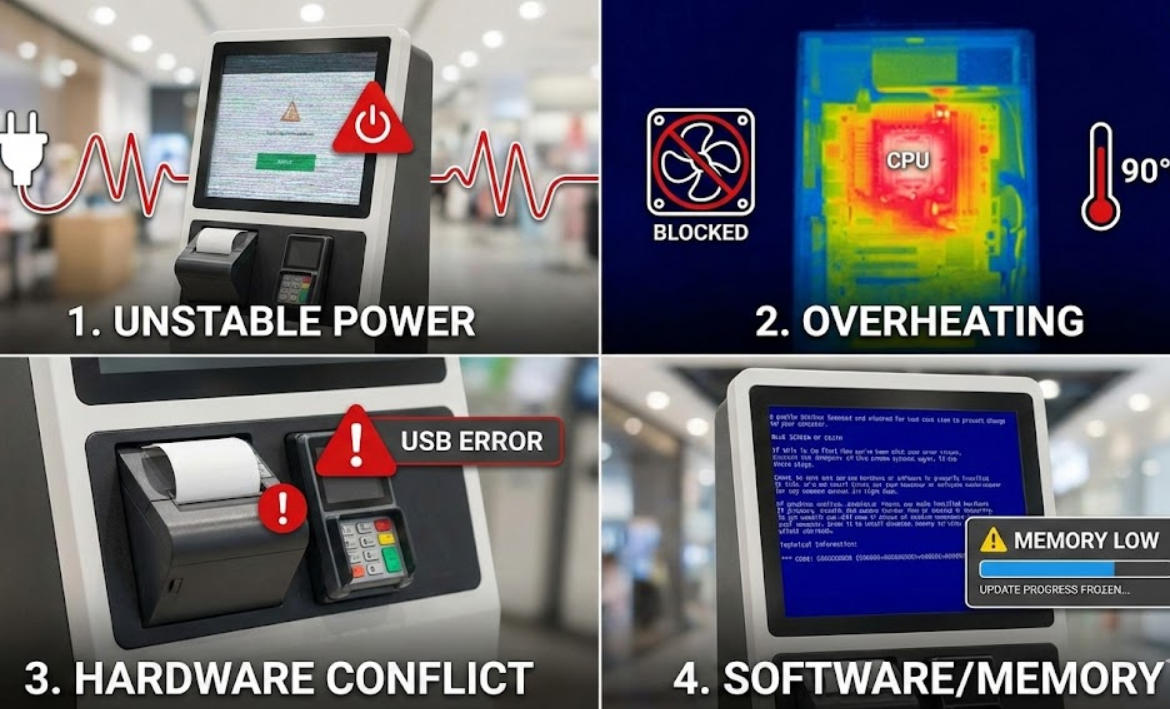
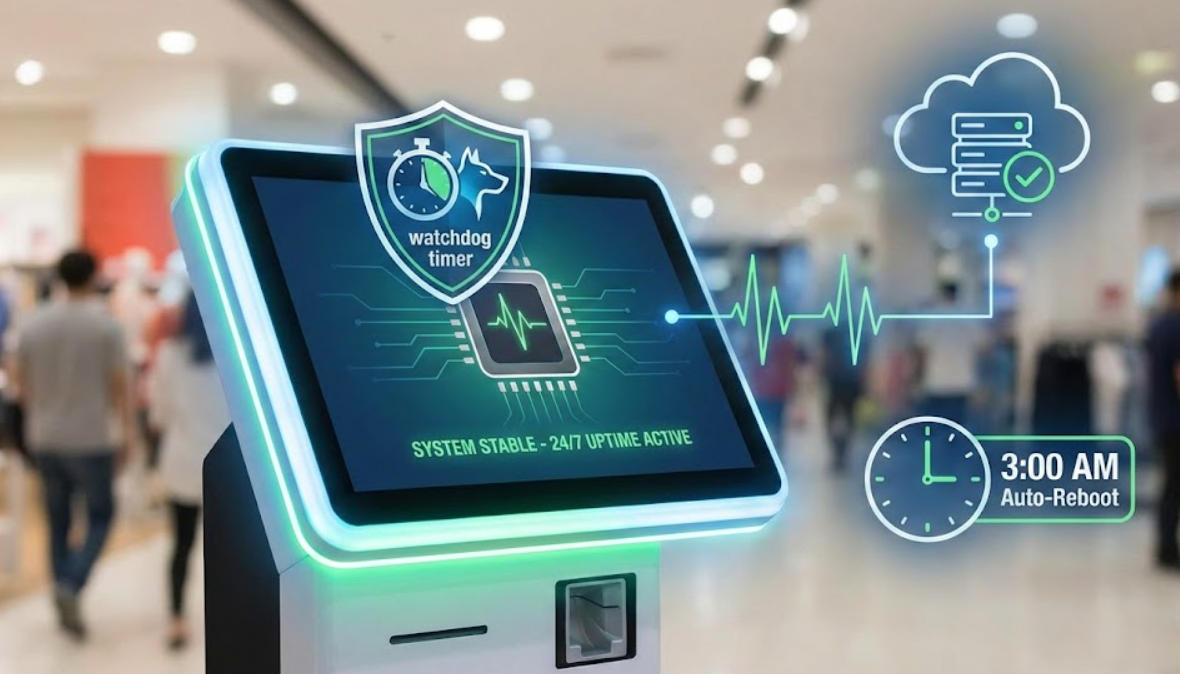
    In the world of automated retail and hospitality, a "System Out of Order" sign is more than a technical glitch—it is a lost revenue opportunity and a blow to customer trust. As self-service kiosks, like the Aonpos APK06 Series, become more complex with integrated printers, scanners, and NFC readers, the risk of software "hangs" increases. To achieve maximum uptime, businesses must move beyond high-quality hardware and implement robust software fail-safes. Here is a deep dive into the software mechanisms that prevent system freezes and keep your kiosks running 24/7. 1. Implementing Software Watchdog Timers (WDT) A Software Watchdog is the most critical line of defense for unattended terminals. It acts as an independent "guardian" process that monitors the primary application. How it works: Your main kiosk app sends a "heartbeat" signal to the Watchdog at set intervals (e.g., every 30 seconds). If the app freezes due to a memory leak or a coding loop, the heartbeat stops. The Watchdog immediately detects the silence and triggers an automatic restart of the application. The Aonpos Advantage: Devices like the Aonpos Self-Service Payment Kiosk are designed to support advanced Watchdog configurations on both Windows and Android 11, ensuring the system "self-heals" without human intervention. 2. Heartbeat Signals and Remote Monitoring While a local watchdog handles application crashes, a network-level heartbeat ensures the entire system is online. The Mechanism: The kiosk software periodically pings a central management server. If the server fails to receive a ping within a specific window, it alerts the IT team or triggers a remote power cycle via a managed PDU. Pro Tip: Use the Aonpos Kiosk SDK to integrate hardware-level status reporting. This allows your software to monitor not just the OS, but also the health of peripherals like thermal printers and QR scanners, preventing a "partial freeze" where the screen works but the payment terminal is dead. 3. Automated Maintenance and Scheduled Reboots Even the most stable software can suffer from fragmented memory over time. The Solution: Configure Automated Maintenance Windows. Setting your kiosks to perform a full system reboot at 3:00 AM clears the RAM cache, re-initializes peripheral drivers (like the built-in 80mm printers), and installs critical security patches. Best Practice: Ensure your kiosk uses a Unified Write Filter (UWF) on Windows-based Aonpos models. This keeps the OS drive in a "read-only" state, preventing disk corruption—one of the leading causes of long-term system instability. 4. Memory Capping and Resource Quotas System freezes often occur because one process consumes 100% of the CPU or RAM, "choking" the rest of the OS. The Fix: Modern kiosk software should utilize Resource Limits. By capping the kiosk application's RAM usage (e.g., to 70% of available memory), you ensure the Operating System always has enough overhead to remain responsive, allowing remote admin tools to still function even if the main app is struggling. Frequently Asked Questions (FAQ) Q1: Why do self-service kiosks experience system freezes most often? Most freezes are caused by Peripheral Conflicts (unresponsive printer drivers), Memory Leaks (apps consuming RAM over time), or Network Latency (the app "hanging" while waiting for a server response). Aonpos kiosks mitigate these issues through high-performance Intel Core i3/i5/i7 processors and optimized Android 11 firmware. Q2: Can I remotely fix a frozen kiosk? Yes. By using Remote Monitoring and Management (RMM) tools integrated with the Aonpos SDK, administrators can perform "Hard Resets" or "Soft Restarts" from a central dashboard, eliminating the need for expensive on-site technician visits. Q3: Does the Operating System affect stability? Absolutely. Windows 10 IoT and Android 11 are the industry standards for stability. Aonpos offers both configurations, allowing you to choose the platform that best fits your existing software stack while maintaining high availability. Q4: How does a modular hardware design help prevent software crashes? A modular design, like that of the APK06 model, allows peripherals to be isolated. If a printer fails, the software can be configured to simply disable the "Print" button rather than freezing the entire transaction flow, ensuring the kiosk remains partially functional. Summary: The Blueprint for 99.9% Uptime Reliability is a combination of Rugged Hardware and Smart Recovery Software. By combining the industrial-grade build of Aonpos kiosks with mechanisms like Watchdog Timers and scheduled reboots, you can ensure your customers never face a frozen screen.
  • Does the Aonpos Self-Service Machine Support Custom Sizes?
    Does the Aonpos Self-Service Machine Support Custom Sizes? Dec 18, 2025
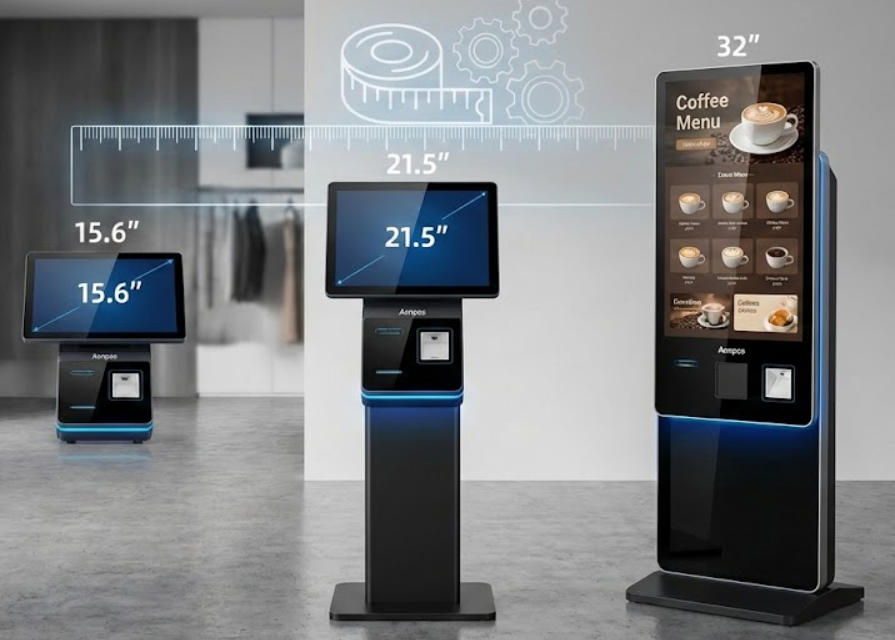
    When integrating self-service technology into a business, "one size" rarely fits all. Whether you are dealing with limited floor space in a boutique cafe or need a high-visibility terminal in a large shopping mall, the dimensions of your hardware are critical. The Short Answer: Can I Get a Custom-Sized Kiosk? Yes. Aonpos self-service payment kiosks fully support custom sizes and configurations. We provide a range of standard screen sizes—including 15.6-inch, 21.5-inch, and 32-inch models—and offer comprehensive OEM/ODM services to customize the physical footprint, height, and mounting style of the machine to meet your specific spatial requirements. 1. Understanding Your Screen Size Options The "size" of a kiosk is usually defined by its display. At Aonpos, we offer three primary tiers designed for different user experiences: 15.6-inch (Compact): Ideal for desktop use or small-scale countertop ordering where space is at a premium. 21.5-inch (Standard): The industry "sweet spot." Large enough for high-impact visuals but compact enough for wall-mounting. 32-inch (Large Format): Best for high-traffic environments where you want to showcase high-resolution menus or advertisements. Need something else? Through our ODM service, we can discuss specific panel requirements for niche applications. 2. Beyond the Screen: Customizing the Physical Footprint The "size" of a self-service machine isn't just about the screen; it’s about how it fits into your architecture. We offer three main form factors that can be adjusted: Wall-Mounted Kiosks: Zero-footprint solutions that save floor space. We can customize the depth of the enclosure to ensure it complies with local accessibility or safety regulations. Floor-Standing Kiosks: We can adjust the height of the pedestal to ensure ergonomic comfort for your specific demographic (e.g., lower heights for children’s play centers or standard heights for retail). Desktop/Countertop Kiosks: Compact bases designed to sit alongside traditional POS systems. 3. How Peripherals Affect Kiosk Size A unique feature of the Aonpos Kiosk Series is the modular peripheral support. Adding hardware will change the profile of your machine: Printers: Choice of 58mm or 80mm thermal printers. Payment Terminals: Custom brackets to fit your specific POS provider (Ingenico, Verifone, etc.). Scanners: Integrated 1D/2D barcode and QR code scanners. Cameras: Optional 3D face-recognition cameras for secure payments. Pro Tip: If you have a specific peripheral that must be integrated, our engineering team can modify the kiosk housing to fit that device perfectly. 4. Why Choose a Bespoke Size for Your Business? Opting for a custom-sized self-service machine provides several strategic advantages: Space Optimization: Maximize revenue per square foot by fitting kiosks into "dead zones" like pillars or narrow hallways. Brand Consistency: We can customize the color, logo, and physical shape to match your interior design. Improved UX: Placing the screen at the exact "eye-line" of your customers reduces fatigue and increases order accuracy. Frequently Asked Questions (FAQ) What is the lead time for a custom-sized kiosk? Standard models are available for rapid shipping. For custom OEM/ODM designs involving structural changes, the timeline typically includes a 1-2 week design phase followed by production. Can I change the height of a floor-standing model? Yes. We can modify the pedestal height during the manufacturing process to ensure it meets your specific ergonomic needs or ADA compliance requirements. Does a custom size affect the software? No. Our kiosks support Windows and Android operating systems. The software automatically scales to fit the resolution of the chosen screen size, ensuring a seamless user experience.
  • What are the different installation options for self-service kiosks? (Wall-mounted / Freestanding / Desktop)
    What are the different installation options for self-service kiosks? (Wall-mounted / Freestanding / Desktop) Dec 17, 2025
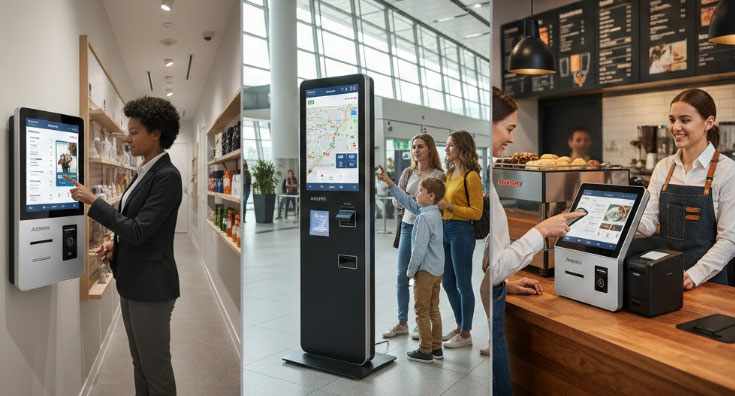
    In the modern business landscape, efficiency is everything. Integrating a self-service payment kiosk can reduce labor costs, eliminate long queues, and improve order accuracy. However, choosing the right hardware is only half the battle—choosing the right installation method is what determines how effectively your customers interact with your brand. At Aonpos, our flagship modular solutions like the APK06 Series are designed to adapt to various environments. Below, we break down the three primary installation options to help you decide which is right for your space. 1. Wall-Mounted Kiosks: The Ultimate Space Saver Wall-mounted kiosks are directly attached to a vertical surface, making them the gold standard for high-traffic areas with limited floor space. Best For: Narrow hallways, small retail shops, and pharmacies. The Aonpos Advantage: Our wall-mount-ready terminals feature sleek, durable aluminum designs that blend seamlessly into modern décor. Why Choose It? Zero Footprint: Frees up 100% of your floor space for customer movement. High Security: Being bolted to a structural wall makes these units nearly impossible to tamper with or move. Custom Height: You can install them at the perfect ergonomic height for your specific customer base, including ADA-compliant heights for accessibility. 2. Freestanding Kiosks: Maximum Visibility & Functionality Freestanding (or floor-standing) kiosks are independent structures that stand on a pedestal or base. They are "beacons" that naturally draw customer attention in open areas. Best For: Large restaurant lobbies, airport check-ins, and shopping mall wayfinding. The Aonpos Advantage: The Aonpos Floor Stand Ordering Kiosk supports large screen sizes (up to 32 inches) and can house heavy-duty 80mm thermal printers and NFC payment modules within the stand itself. Why Choose It? 360-Degree Visibility: They catch the eye from across a large room, encouraging "self-service first" behavior. Component Storage: The large base allows for more peripherals, such as cash recyclers or high-capacity ticket printers. Flexibility: While stable, they can be repositioned during store renovations without structural wall repairs. 3. Desktop & Countertop Kiosks: Portable & Versatile Desktop kiosks sit on existing counters or desks. They are ideal for businesses that want to modernize their Point of Sale (POS) without a full construction project. Best For: Cafés, hotel receptions, and boutique "manned" service counters. The Aonpos Advantage: Our APK06 Modular Desktop Kiosk is a groundbreaking device. Its modular design allows businesses to swap out screens (15.6" to 23.8") and components to meet changing needs. Why Choose It? Lowest Installation Cost: Simply place it on the counter and plug it in. No drilling or structural work required. Human-Tech Hybrid: Perfect for environments where a staff member is nearby to assist, creating a more personalized high-tech experience. Waterproof Options: Aonpos offers waterproof modern designs, essential for the demanding food and beverage industry. Comparison Table: At-a-Glance Feature Wall-Mounted Freestanding Desktop / Countertop Space Required Minimal (0 Floor Space) Significant Floor Space Moderate Counter Space Installation Difficulty Medium (Professional) Medium (Assembly) Low (Plug-and-Play) Visibility Moderate Very High Low/Moderate Typical Screen Sizes 15.6" - 21.5" 21.5" - 32" 15.6" - 23.8" Aonpos Model APK07 / PK1851 APK06 / Floor Stand APK06 Desktop Frequently Asked Questions (FAQ) Q: Can one kiosk support multiple installation types? A: Yes! The Aonpos APK06 is a modular system. It is specifically designed to be "groundbreaking" by allowing the same core unit to be deployed as either a desktop or a floor-standing model, depending on the modules you choose. Q: How do I handle cable management for a clean look? A: For wall-mounted and freestanding units, Aonpos kiosks feature internal routing channels. This hides power and internet cables inside the enclosure, preventing accidental unplugging and maintaining a professional aesthetic. Q: What technical specs should I look for in a payment kiosk? A: Ensure your kiosk has a capacitive touch screen for responsiveness, a high-performance CPU (like the i3/i5 or RK3568 options in the APK series), and integrated NFC/Printer support to handle all-in-one transactions. Conclusion Choosing between wall-mounted, freestanding, or desktop kiosks depends on your floor plan and customer flow. Whether you need the space-saving power of a wall-mount or the modular flexibility of the Aonpos APK06, we have the hardware to scale your business. Explore the full Aonpos Self-Service Kiosk Range Here
  • Does the Self-Service Machine Support OCR, ID Card Reading, and Barcode Scanning?
    Does the Self-Service Machine Support OCR, ID Card Reading, and Barcode Scanning? Dec 16, 2025
    Unlocking Self-Service Kiosk Potential: Full Support for OCR, ID Card Reading, and 1D/2D Barcode Scanning The modern self-service machine is far more than just a payment terminal—it is a sophisticated data capture hub. For businesses deploying solutions for age verification, secure check-in, or enhanced inventory management, the question is no longer if a kiosk supports essential technologies, but how effectively it integrates them. At Aonpos, our self-service payment kiosks and modular terminals—such as the advanced APK06 series—are engineered from the ground up to integrate high-performance Optical Character Recognition (OCR), secure ID card reading, and versatile 1D/2D barcode scanning capabilities. Below, we detail how these three technologies function within your self-service environment to create seamless, secure, and efficient customer experiences. 1. Optical Character Recognition (OCR): Digitizing Every Document OCR is the foundational technology that allows a machine to "read" human-printed text. It is critical for processing identity documents and receipts that do not rely solely on a barcode or magnetic strip. The Power of Precision Scanning OCR is executed via an integrated camera or dedicated scanning module that captures a high-resolution image. Specialized software then extracts the text data, converting the visual pattern into digital, queryable text. Targeting the MRZ: For international travel or government applications, OCR is essential for reading the Machine Readable Zone (MRZ)—the standardized text block found on the bottom of passports and certain ID cards. Our solutions are designed for ICAO 9303 compliance, ensuring compatibility with global travel documents and exceptionally high reading accuracy. Reading the VIZ: OCR also handles the Visual Inspection Zone (VIZ), which is the standard printed text (name, address, date of birth) on an ID card or form, making it possible to capture data from non-standardized or locally issued documents. High-Performance OCR Accuracy: In a high-volume self-service environment, speed and accuracy are paramount. Aonpos Kiosk solutions prioritize imaging hardware and intelligent algorithms that maintain an OCR accuracy rate typically exceeding 95%, minimizing user frustration from repeat scans. 2. Secure ID Card and Identity Document Reading Integrating ID card reading moves beyond simple data capture; it involves comprehensive identity verification and fraud prevention—essential steps for applications like guest check-in, age-restricted purchases, or membership enrollment. Multi-Layered Verification for Fraud Prevention A truly effective ID card reader in a self-service kiosk uses multiple verification methods simultaneously: Verification Method Purpose in a Self-Service Kiosk Data Extraction (OCR/Barcode) Rapidly pulls and parses data from the front (VIZ) and back (PDF417 barcode) of a driver’s license or ID. Document Authentication (IR/UV) Scans the document under Infrared (IR) and Ultraviolet (UV) light to instantly check for embedded security features, detecting sophisticated fake IDs. Biometric/Chip Reading (RFID) Utilizes RFID (Radio Frequency Identification) technology to securely read biometric and encrypted data from electronic passports (e-Passports) or e-IDs, a standard for highly secure transactions. Prioritizing Data Privacy and Compliance Handling sensitive PII (Personally Identifiable Information) requires robust security architecture. Our modular kiosks are designed to ensure data is processed with encryption protocols, meeting international standards such as GDPR and CCPA, building trust with your customer base. 3. Versatile 1D and 2D Barcode Scanning Barcode scanning is the most common form of data input for self-service terminals, whether used for checking out retail items, validating digital coupons, or scanning mobile boarding passes. The Superiority of 2D Area Imagers While older kiosks relied on 1D laser scanners (which only read traditional linear barcodes), our current-generation Aonpos kiosks incorporate high-speed 2D Area Imagers. This technology provides substantial advantages: Total Versatility: The 2D imager can read every major barcode symbology, including standard 1D barcodes (UPC, Code 128), as well as complex 2D formats (QR Codes, Data Matrix, and PDF417). Scan-from-Screen Capability: The imaging sensor allows the kiosk to accurately read barcodes, QR codes, and digital passes displayed on customer smartphones or tablets, eliminating friction caused by printed tickets. Omnidirectional Scanning: Unlike linear scanners, 2D imagers can read the code regardless of its orientation. This omnidirectional scanning capability is key to ensuring a fast, fumble-free self-checkout or check-in process, drastically improving customer flow. Integration is Key: Kiosk-Optimized Hardware Our Aonpos Self-service Kiosk solutions, like the customizable APK06, integrate high-performance scanners directly into the terminal housing. This ensures seamless operation with the kiosk's core operating system (Android or Windows), guaranteeing that data captured by the scanner is instantly passed to your POS, inventory, or CRM software. Ready to Upgrade Your Self-Service Capabilities? By choosing a self-service solution with robust, integrated OCR, ID card reading, and barcode scanning, you invest in a future-proof terminal that enhances security, speeds up transactions, and significantly improves the customer experience. For more information on our modular kiosk solutions and integrated hardware options, please visit the official Aonpos website.
  • Can Your Self-Service Equipment Operate 24 Hours a Day?
    Can Your Self-Service Equipment Operate 24 Hours a Day? Dec 15, 2025
    Yes, Self-Service Kiosks Can Run 24/7—Here’s What Guarantees Uninterrupted Uptime The core promise of self-service equipment is accessibility. Whether you operate a restaurant, a retail store, or a payment facility, the ability to serve customers around the clock—long after staff have gone home—is the defining feature of these solutions. So, can your self-service kiosk truly operate 24 hours a day, 7 days a week, 365 days a year? The definitive answer is yes, provided the equipment is engineered for continuous uptime. Achieving true 24/7 service involves three critical pillars: hardware built for endurance, software designed for stability, and an operational strategy focused on proactive maintenance. 1. The Hardware Foundation: Built for Perpetual Endurance A commercial kiosk is not a consumer PC. The components used must be industrial-grade to withstand constant power cycles, environmental fluctuations, and user interaction. This is the starting point for achieving continuous uptime. A. Industrial-Grade Core Components High-traffic use requires components that are designed to handle high duty cycles without failure: Processors and Memory: Equipment relies on robust, reliable CPUs (such as the Intel J4125/I3/I5 series found in Aonpos kiosks) and DDR memory to manage thousands of transactions daily without performance degradation. Solid-State Drives (SSDs): Unlike traditional hard disk drives (HDDs), the use of mSATA SSDs eliminates moving parts, reducing heat generation and dramatically improving speed and reliability against vibration and constant usage cycles. Capacitive Touchscreens: Modern kiosks utilize true-flat, 10-point capacitive touch screens that are highly durable, resistant to wear and tear, and designed for millions of touches. B. Thermal and Environmental Resilience Running non-stop means managing heat, which is the enemy of electronics. Quality self-service equipment incorporates: Optimized Cooling Systems: Internal cooling is precisely engineered to maintain temperatures within a safe operating range, ensuring components do not prematurely fail due to heat stress. Durable Chassis Design: Kiosks are often constructed with rugged materials like Aluminum Alloy and ABS Plastic, offering physical protection and acting as a passive thermal sink. Wide Operating Temperature Ranges: Industrial-grade devices are verified to operate reliably across real-world temperatures, often rated to handle environments from 0°C up to 40°C. 2. The Software Engine: Designed for Unbreakable Flow Even the most robust hardware can fail if the operating software is unstable. Continuous operation is guaranteed by smart software design. A. Watchdog Systems and Crash Recovery A high-availability system must be able to heal itself instantly. Intelligent kiosk software includes: Automatic Restarts: A software "watchdog" constantly monitors the primary application. If the application freezes or crashes for any reason, the watchdog immediately forces a silent restart of the application or the operating system, often restoring service within seconds without requiring human intervention. Non-Intrusive Updates: To maintain service, critical updates and patches are scheduled during periods of minimal traffic (typically early morning hours) or are designed to be deployed in the background without forcing a service disruption or reboot. B. Remote Monitoring and Fault Alarms The ability to run 24/7 means being able to detect problems instantly, even if the location is unmanned. Intelligent Management: Advanced kiosks are equipped with cloud-based systems that provide remote monitoring and fault alarms. If a component fails (e.g., a printer runs out of paper or a payment peripheral disconnects), the system instantly sends an alert to the operator's support dashboard. Proactive Diagnostics: System logs and performance data are continuously analyzed to spot performance bottlenecks or potential hardware issues before they become critical failures, allowing for preventive maintenance. 3. The Operational Blueprint: Maintaining Perpetual Service While the technology enables 24/7 operation, the operator's strategy sustains it. A successful continuous service model relies heavily on logistics and proactive support. A. Scheduled Consumable and Quick Maintenance Checks Certain components are designed to run out of material—namely the printer. Modular Design for Service: Aonpos kiosks often feature a modular design that makes maintenance fast and easy. Components like thermal printers or scanners are designed to be accessed and swapped out quickly, reducing service downtime. Quick Reloads: Scheduled 3-minute checks for refilling consumables like receipt paper or cleaning the screen keep the machine ready. By integrating these checks into low-traffic times, the machine’s availability remains virtually uninterrupted. B. Dedicated 24-Hour Support Reliability is backed by the promise of immediate support. Reputable manufacturers offer: 24-Hour Standby and Technical Guidance: Access to technical staff for remote troubleshooting is essential. The manufacturer's team should be on 24-hour standby to guide customers through simple fixes or initiate remote diagnostics, minimizing field service visits. The Takeaway: From Availability to Reliability The answer to "Can the self-service equipment operate 24 hours a day?" is an emphatic Yes, but only when it is rooted in industrial-grade hardware, intelligent fault-recovery software, and streamlined maintenance protocols. Choosing a partner like Aonpos, which engineers its kiosks specifically for 7*24 hours uninterrupted service, ensures your business truly capitalizes on the benefits of self-service: maximized revenue and unrivaled customer convenience.
  • How do I enable VPN/firewall settings on the self-service kiosk?
    How do I enable VPN/firewall settings on the self-service kiosk? Dec 13, 2025
    The Definitive Guide to Configuring VPN and Firewall Settings on a Self-Service Kiosk Enabling VPN and firewall settings on a self-service kiosk involves two critical security steps: first, accessing the Host Firewall (e.g., Windows Defender or iptables) with administrative rights to define strict inbound and outbound port rules; and second, installing and configuring a robust VPN client to automatically establish an encrypted tunnel upon system boot. This dual configuration ensures sensitive payment data is protected in transit, adhering to crucial mandates like PCI DSS compliance. 1. Why VPN and Firewall are Non-Negotiable for Kiosk Security A self-service kiosk, especially one that handles payment or personally identifiable information (PII), is an internet-connected endpoint and a prime target for cyber threats. Proper network configuration is the first line of defense. The Role of the Firewall The firewall acts as a bouncer, regulating all incoming and outgoing network traffic. Minimizing Attack Surface: Kiosks typically run a single application. The firewall is used to block all ports except the handful necessary for operation (e.g., HTTPS on port 443, DNS on port 53). Securing Remote Management: If you manage your kiosk fleet remotely (via RDP, SSH, or VNC), the firewall ensures that the management port is only accessible from your specified internal IP range or through the secured VPN tunnel. Default-Deny Policy: Best practice dictates a "Default-Deny" rule: block everything, then explicitly allow only what is absolutely necessary. The Role of the VPN (Virtual Private Network) The VPN provides an encrypted tunnel for data transmission, ensuring that data sent between the kiosk and your backend servers is completely shielded from snooping or interception. PCI DSS Compliance: If your kiosk processes credit card data, the VPN is often a necessary component for meeting PCI DSS requirements for network segmentation and secure data transmission. IP Masking & Network Segmentation: The VPN can route all kiosk traffic through a central, trusted corporate gateway, making the kiosk effectively part of your private internal network, segmented from the public internet. 2. Prerequisites: Preparing for Configuration Before touching any settings, gather these essential items: Requirement Description Administrative Credentials You must have the administrator username and password for the kiosk's Operating System (e.g., Windows Professional, Linux). Standard user accounts will not suffice. VPN Configuration Files Obtain the necessary files from your VPN provider: usually a client installer, configuration files (.ovpn, .conf), and any required certificates or key files. Approved Port List A definitive list of specific ports that the kiosk must use (e.g., 443 for API calls, 80 for updates, 22 for SSH management). Static IP Address Ideally, the kiosk should have a static internal IP address or a reserved DHCP address for easier firewall rule creation. 3. Step-by-Step Guide: Implementing the Host Firewall This guide is generalized for common operating systems like Windows and Linux. 3.1. Accessing the Firewall Interface Windows: Open Windows Defender Firewall with Advanced Security (Search: wf.msc). Linux (iptables/ufw): Use command-line tools like sudo ufw enable and sudo ufw status. 3.2. Configuring Inbound Rules (Defense) Inbound rules block unwanted connections trying to reach the kiosk. Navigate to Inbound Rules. Create a Rule to Block All Traffic: If your OS does not have a "Default Deny," create a custom rule to block all traffic (ports, protocols, profiles) and ensure it is the highest priority. Create "Allow" Rules: Create new, high-priority rules for essential services: Management: Allow only RDP (3389) or SSH (22) traffic, and specify the remote IP address of your network admin machine or central server—not the public internet. VPN Tunnel: Allow the specific port used by your VPN protocol (e.g., UDP 1194 for OpenVPN or UDP 500/4500 for IPsec). 3.3. Configuring Outbound Rules (Control) Outbound rules prevent malware or rogue applications from sending data out. Navigate to Outbound Rules. Block All by Default: Create a rule to deny all outbound traffic. Create "Allow" Rules for Essentials: Allow traffic to your Application Server IP on HTTPS (443). Allow traffic to the VPN Gateway IP on the specified VPN port. Allow necessary DNS queries (usually UDP 53). 4. Step-by-Step Guide: Configuring the VPN Client The VPN configuration must be seamless, resilient, and invisible to the end-user. 4.1. Install the VPN Client Install the client (e.g., OpenVPN, Cisco AnyConnect, WireGuard) using the administrative account. Do not use an integrated OS client unless it supports all necessary corporate features. 4.2. Crucial Auto-Connect Settings The VPN must always be active. A manual connection is a security vulnerability waiting to happen. Enable System Service: Ensure the VPN client is configured to run as a System Service and not a user-level application. Auto-Start on Boot: Set the client to automatically launch and attempt connection immediately after the operating system loads. Persistent Connection: Configure the client's settings or its configuration file to aggressively Auto-Reconnect if the tunnel drops for any reason. 4.3. Implement a VPN Kill Switch A "Kill Switch" or equivalent setting ensures that if the VPN connection fails, the kiosk's application is blocked from accessing the internet directly. Best Practice: Use a firewall rule that only allows traffic to exit the machine if it is coming from the VPN's virtual network adapter. If the VPN drops, the virtual adapter disappears, and traffic cannot pass. 5. Post-Configuration Verification and Auditing The setup is not complete until you verify that the security measures are working. Reboot the Kiosk: Perform a full power cycle to ensure the VPN client and firewall rules correctly load before the kiosk application. Verify External IP: After the kiosk boots, use a diagnostic tool or a browser to check its external IP address (e.g., search "What is my IP"). The displayed address must be the IP address of your corporate VPN gateway, not the local site's ISP address. Negative Test (Firewall Audit): Attempt to ping or connect to a completely unrelated, non-essential external service (e.g., a random public web server). The connection should be immediately blocked by the outbound firewall rule. Check Logs: Review the system logs and the VPN client logs for any "connection failed" or "dropped packet" errors to ensure stability.
  • What should I do if the self-service machine's camera cannot recognize my identification document?
    What should I do if the self-service machine's camera cannot recognize my identification document? Dec 11, 2025
    Encountering an "ID not recognized" error at a self-service machine can be frustrating. These kiosks rely on highly sensitive cameras to verify the security features and machine-readable zones on your identification document. In most cases, the issue is environmental, not electronic. Before calling for assistance, follow this comprehensive, step-by-step guide to quickly troubleshoot and fix common ID scanning failures. 1. Immediate Steps: Fix the Environment and Positioning Follow these quick steps, as glare and smudges account for over 80% of self-service machine scanning errors. Step 1: Check the Document and Scanner Lens The camera cannot read what it cannot see clearly. Clean Your ID: Use a soft, dry cloth or tissue to gently wipe the entire surface of your identification (e.g., driver's license, passport card). Pay special attention to the photo area and the machine-readable code, as fingerprints cause reflection (glare). Wipe the Scanner: If safe and accessible, use a clean cloth to gently wipe the glass or plastic cover over the machine's camera/scanner lens. Dust and residue easily collect here. Step 2: Eliminate Glare and Adjust Positioning Ambient light interference is a major cause of document scanner errors. Shield from Light: If the kiosk is near a window or bright overhead light, use your body or hand to cast a shadow over the ID while it is on the scanning bed. Direct light creates bright spots that obscure holographic security features. Ensure Flatness: Place the ID completely flat against the scanning surface. If the card is warped or bent, the camera struggles to focus evenly across the entire document. Center the Scan: Ensure the document is perfectly centered and aligned within the designated white guides or outline on the scanner bed. Hold Still: Once placed, keep your hands clear and ensure the ID remains absolutely still for the duration of the scan (usually 3–5 seconds). Movement results in a blurred image. 2. Document-Specific Troubleshooting Sometimes, the issue lies with the physical condition or type of document itself. Damaged/Worn IDs: If your laminated ID is peeling, heavily scratched, or the plastic film is separating, the damage may be distorting the data, leading to a permanent ID verification failure. You may need to use an alternate, undamaged document. Temporary Paper IDs: If you are using a temporary paper ID, it must be completely flat. If the edges lift, gently hold them down during the scan without covering the data. Paper documents are susceptible to folding or bending, which the scanner interprets as damage. Unsupported Documents: Ensure you are using an accepted form of ID. For instance, the machine may only be programmed to recognize the standard size and format of a State Driver's License and might not accept documents like a library card or a foreign work permit. 3. Escalation and Getting Assistance If you have tried the steps above and the machine still cannot read your identification, you need to call for help. Action Goal Detail Retry Once Rule out a simple software glitch. If the machine prompts "Try Again," attempt one final scan after confirming the document is clean and flat. Note the Machine ID Expedite technician support. Locate the unique identifier (e.g., APK06 or APK02) usually displayed prominently on the screen or body of the kiosk. Provide this number when you call. Call for On-Site Help Resolve the hardware failure. Use the dedicated "Call for Assistance" button on the machine for immediate support. The machine may require a remote reset. Key Takeaway: If the machine fails consistently, the camera itself may be misaligned or dirty internally. Providing the support staff with the Machine ID is the fastest way to get the problem fixed.
  • What should I do if the self-service machine's camera cannot recognize my identification document?
    What should I do if the self-service machine's camera cannot recognize my identification document? Dec 11, 2025
    Encountering an "ID not recognized" error at a self-service machine can be frustrating. These kiosks rely on highly sensitive cameras to verify the security features and machine-readable zones on your identification document. In most cases, the issue is environmental, not electronic. Before calling for assistance, follow this comprehensive, step-by-step guide to quickly troubleshoot and fix common ID scanning failures. 1. Immediate Steps: Fix the Environment and Positioning Follow these quick steps, as glare and smudges account for over 80% of self-service machine scanning errors. Step 1: Check the Document and Scanner Lens The camera cannot read what it cannot see clearly. Clean Your ID: Use a soft, dry cloth or tissue to gently wipe the entire surface of your identification (e.g., driver's license, passport card). Pay special attention to the photo area and the machine-readable code, as fingerprints cause reflection (glare). Wipe the Scanner: If safe and accessible, use a clean cloth to gently wipe the glass or plastic cover over the machine's camera/scanner lens. Dust and residue easily collect here. Step 2: Eliminate Glare and Adjust Positioning Ambient light interference is a major cause of document scanner errors. Shield from Light: If the kiosk is near a window or bright overhead light, use your body or hand to cast a shadow over the ID while it is on the scanning bed. Direct light creates bright spots that obscure holographic security features. Ensure Flatness: Place the ID completely flat against the scanning surface. If the card is warped or bent, the camera struggles to focus evenly across the entire document. Center the Scan: Ensure the document is perfectly centered and aligned within the designated white guides or outline on the scanner bed. Hold Still: Once placed, keep your hands clear and ensure the ID remains absolutely still for the duration of the scan (usually 3–5 seconds). Movement results in a blurred image. 2. Document-Specific Troubleshooting Sometimes, the issue lies with the physical condition or type of document itself. Damaged/Worn IDs: If your laminated ID is peeling, heavily scratched, or the plastic film is separating, the damage may be distorting the data, leading to a permanent ID verification failure. You may need to use an alternate, undamaged document. Temporary Paper IDs: If you are using a temporary paper ID, it must be completely flat. If the edges lift, gently hold them down during the scan without covering the data. Paper documents are susceptible to folding or bending, which the scanner interprets as damage. Unsupported Documents: Ensure you are using an accepted form of ID. For instance, the machine may only be programmed to recognize the standard size and format of a State Driver's License and might not accept documents like a library card or a foreign work permit. 3. Escalation and Getting Assistance If you have tried the steps above and the machine still cannot read your identification, you need to call for help. Action Goal Detail Retry Once Rule out a simple software glitch. If the machine prompts "Try Again," attempt one final scan after confirming the document is clean and flat. Note the Machine ID Expedite technician support. Locate the unique identifier (e.g., APK06 or APK02) usually displayed prominently on the screen or body of the kiosk. Provide this number when you call. Call for On-Site Help Resolve the hardware failure. Use the dedicated "Call for Assistance" button on the machine for immediate support. The machine may require a remote reset. Key Takeaway: If the machine fails consistently, the camera itself may be misaligned or dirty internally. Providing the support staff with the Machine ID is the fastest way to get the problem fixed.
1 2 3

ما مجموعه 3الصفحات

تحتاج مساعدة؟ دردش معنا

ترك رسالة
لأي طلب معلومات أو دعم فني ، املأ النموذج. جميع الحقول التي تحمل علامة النجمة * مطلوبة.
يُقدِّم

بيت

منتجات

whatsApp

اتصال