Aonpos الكل في مكان واحد
  • How to choose between mobile POS, handheld POS, MPOS, and smart POS?
    How to choose between mobile POS, handheld POS, MPOS, and smart POS? Jan 23, 2026
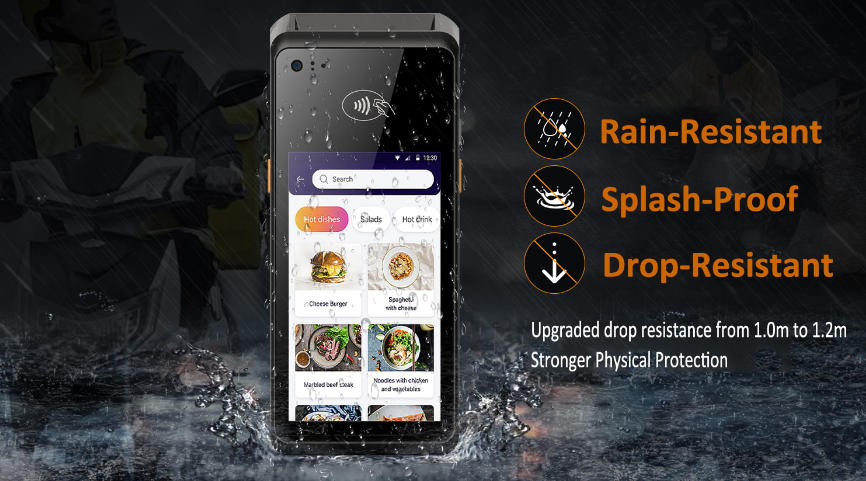
    If you’ve spent time searching for a way to take payments on the move, you've hit a wall of acronyms. It’s frustrating. Salespeople pitch mPOS and Smart POS, but often they're talking about the same device. The truth is, "Mobile POS" is really an umbrella term. The truth is, "Mobile POS" is a catch-all term, like "motor vehicle" – it could be a scooter or a semi-truck. To choose the right one, look under the hood. Here's a plain-English breakdown of what these devices do and how to pick the one that fits your daily routine. 1. The mPOS: Your Phone’s Sidekick Think of an mPOS (Mobile Point of Sale) as the "entry-level" option. It isn't a standalone computer. Instead, it’s a small card reader (the "dongle") that connects to your own smartphone or tablet via Bluetooth. The Vibe: You carry your phone in one pocket and a card reader the size of a deck of cards in the other. The Reality: It’s cheap and easy. If you’re a weekend warrior at a farmer’s market or a consultant who only takes a few payments a week, this is perfect. The Catch: It feels a bit "DIY." You have to keep two devices charged, and your personal phone battery will take a hit. Also, if you need to print a receipt, you’re out of luck unless you buy another Bluetooth printer. 2. Handheld POS: The Dedicated Workhorse A Handheld POS is a single, dedicated device built for one job: taking payments. It doesn't need your phone to work. It has its own screen, its own processor, and—most importantly for many—a built-in thermal printer. The Vibe: Professional and rugged. It looks like a traditional card machine but shrunk down to fit in your palm. The Reality: This is the "Goldilocks" zone for restaurants and busy retail. You can drop it (within reason), the battery lasts all day, and it usually has a SIM card slot so you aren't tethered to spotty Wi-Fi. The Catch: It’s heavier than an mPOS, and the upfront cost is higher because you’re buying a full computer, not just a reader. 3. Smart POS: More Than Just a Terminal The "Smart" in Smart POS usually refers to the operating system—most of these run on a professional version of Android. While they often look just like Handheld POS devices, the difference is the software. The Vibe: A smartphone that happens to take credit cards. The Reality: This is for the business owner who wants to do more than just "swipe and go." Because it’s a Smart device, you can run apps for inventory management, staff clock-ins, or loyalty programs right on the screen. If a customer asks, "Do you have this in blue?" you can check the stock on the terminal without walking to the back room. The Catch: These usually come with a monthly software subscription. You aren't just paying for hardware; you're paying for the "brain" inside it. Making the Choice: Which One Wins? Choosing the right system comes down to your "pain points." If your biggest worry is cost: Go with an mPOS. It’s the lowest barrier to entry. Just be prepared for the occasional Bluetooth pairing headache. If you run a restaurant or a cafe: You likely need a Handheld POS. You need the speed of a built-in printer and a device that can survive a splash of coffee or a busy dinner rush. If you want data and growth: Invest in a Smart POS. Being able to see your best-selling items or manage a rewards program on the fly is worth the extra few dollars a month in the long run. The Connectivity Question One quick tip: before you buy, check your connectivity. If you’re selling at outdoor festivals, an mPOS using your phone's 5G is great. But if you're in a brick-and-mortar store with thick walls, look for a Smart or Handheld POS that supports both Wi-Fi and a 4G SIM card as a backup. There is nothing worse than a line of customers and a "Searching for Signal" icon. FAQ: Common Questions We Hear Q: Do I have to pay a monthly fee for all of these? A: Not always. Many mPOS providers only charge a percentage of the sale. However, Handheld and Smart POS systems often have a monthly "SaaS" (Software as a Service) fee to keep the advanced features running. Q: Can I use my own iPad with a Handheld POS? A: Usually, no. A Handheld POS is an all-in-one unit. If you want to use your iPad, you are looking for a "Tablet POS" setup, which usually falls under the mPOS or Fixed POS category. Q: Is a Smart POS as secure as the old-school machines? A: Actually, they’re often more secure. They use end-to-end encryption and are built to comply with the latest PCI standards, meaning customer data never actually "touches" your device in a readable way.
  • Do POS terminals have waterproof and dustproof ratings? (IP54 / IP65) Which industries require this?
    Do POS terminals have waterproof and dustproof ratings? (IP54 / IP65) Which industries require this? Jan 17, 2026
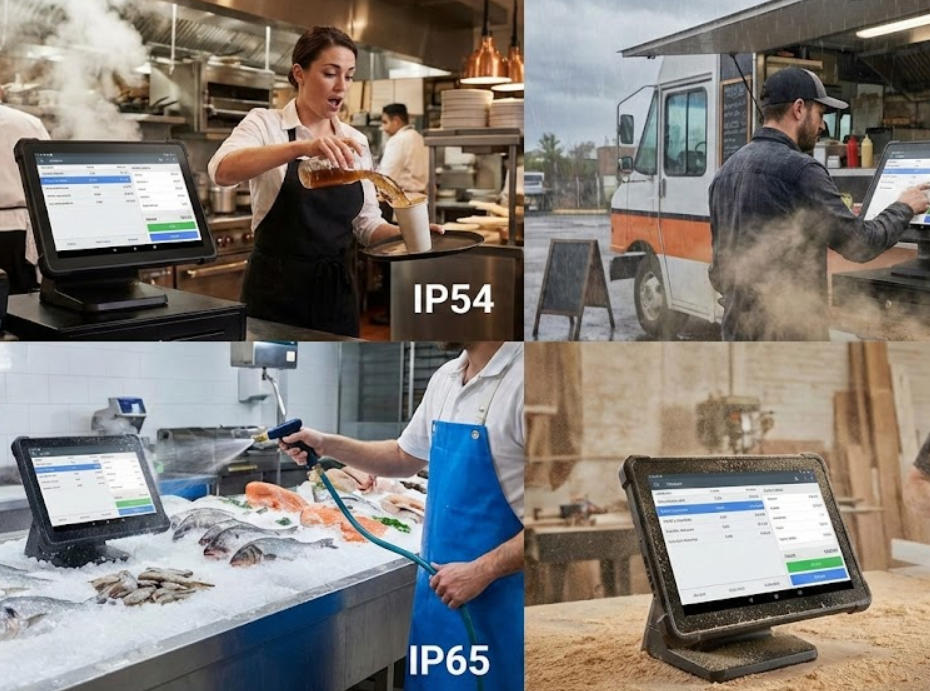
    Let’s be honest: the average retail environment is a minefield for electronics. If you’ve ever watched a server’s face go pale as a pint of beer tips toward the register, or seen a food truck owner scramble to cover their gear during a sudden downpour, you know that "standard" office tech just doesn't cut it in the real world. That’s where IP ratings come in. But before you spend extra on a "rugged" machine, you need to know if you're buying genuine protection or just a fancy marketing label. First things first: What do these numbers actually mean? When we talk about "IP" (Ingress Protection), we’re looking at two specific numbers that tell a story about the terminal’s armor. IP54 (The "Daily Hustle" Guard): The '5' means it can handle dust without the internals getting choked up. The '4' means it can survive splashes from any angle. It’s not meant to be submerged, but it can handle a clumsy spill or a damp cloth wipe-down. IP65 (The "Heavy Duty" Shield): This is a step up. The '6' means it is 100% dust-tight—nothing is getting in. The '5' means it can handle low-pressure water jets. If you need to spray your counter down at the end of the night, this is your rating. Which Industries Actually Need This? Not every business needs a "tank" on their counter. If you run a high-end boutique selling silk scarves, a standard terminal is fine. But for the following industries, an IP rating is essentially an insurance policy for your uptime. 1. Restaurants, Bars, and Busy Kitchens Between the steam in the kitchen and the liquid chaos of a busy bar, humidity is the silent killer of POS systems. An IP54 rating is usually the sweet spot here. It protects the motherboard from the sticky residue of soda spills and the fine mist of cleaning sprays used during a shift change. 2. Food Trucks and Outdoor Markets Outdoor vendors are at the mercy of the elements. Wind-blown dust can get into the ports of a standard iPad or basic register, causing it to overheat or fail. Moreover, if you’re operating a food truck, an IP65 rating gives you peace of mind that a sudden rainstorm won't end your business day prematurely. 3. Seafood Markets and "Wet" Retail If your business involves ice, raw product, or constant washing—like a butcher shop or a florist—you are in a high-moisture zone. Here, an IP65 terminal isn't a luxury; it’s a requirement. You need a device that can be sanitized thoroughly without water seeping behind the glass. 4. Manufacturing and Workshops In environments where sawdust, metal shavings, or fine powders (like flour in a large bakery) are airborne, a standard cooling fan will suck that debris straight into the machine. A dust-tight IP6X rated terminal ensures the "brains" of your POS stay clean. Is it worth the extra cost? I get asked this a lot: "Why pay more for an IP65 screen when I can just be careful?" The reality is that "being careful" fails 100% of the time during a Friday night rush. The cost of a rugged POS is almost always lower than the cost of: A mid-day hardware failure. Emergency technician fees. The loss of customer trust when you have to go "Cash Only" for three days. If your POS System is going to live in a temperature-controlled, clean room, don't worry about it. But if your business is messy, loud, humid, or outdoors, look for at least an IP54 rating. If you expect to encounter direct rain or heavy cleaning, go for IP65. FAQ: What You Need to Know Q: Can I use a regular tablet if I put it in a waterproof case? A: You can, but it’s a band-aid solution. Cases often cause tablets to overheat because they can't dissipate heat, and the touch sensitivity usually drops. A purpose-built IP-rated terminal is designed to stay cool while staying sealed. Q: Does IP65 mean I can pressure wash my POS? A: Absolutely not. IP65 handles low-pressure jets (like a tap or a light hose). High-pressure washers will force water past the seals. Always use a damp cloth and a gentle touch. Q: Are these terminals harder to repair? A: Sometimes, because the seals are very tight. However, they require repair so much less often that the trade-off is almost always worth it for a business owner.
  • Does Your POS Terminal Support Remote Restart & Recovery?
    Does Your POS Terminal Support Remote Restart & Recovery? Jan 14, 2026
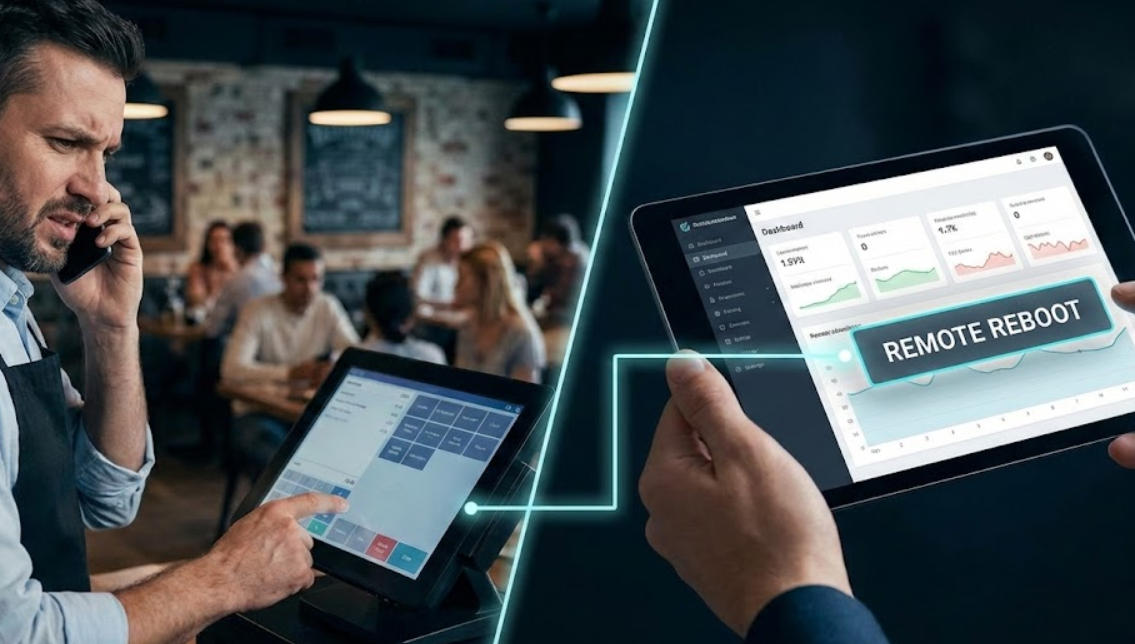
    Imagine it’s the middle of a Friday lunch rush. The line is out the door, and suddenly, your main POS terminal freezes. In the past, this meant a panicked phone call to a technician and hours—or even days—of lost revenue while you waited for a site visit. But things have changed. Modern point-of-sale hardware is smarter now. The question isn't just "Does it work?" but rather "Can I fix it from anywhere?" Here is everything you need to know about remote restarts, system recovery, and why these features are the secret weapon of successful retail and restaurant managers. The Basics: Can your terminal actually do this? Most enterprise-grade terminals running on Android or Windows IoT are built to support remote management. However, the hardware can’t do it alone. It needs to be "linked" to a management platform—often called MDM (Mobile Device Management). If your system is cloud-based, there’s a high chance you already have the "plumbing" in place to reboot a device from your home office or even your smartphone. Remote Restart vs. Remote Recovery: What’s the difference? People often use these terms interchangeably, but in a crisis, knowing the difference is vital. 1. The Remote Restart (The "Quick Fix") This is the digital equivalent of unplugging it and plugging it back in. When to use it: The app is laggy, the card reader isn't "talking" to the screen, or the interface feels sluggish. The Result: It clears the system's temporary memory (RAM) and gives the software a fresh start without deleting any of your settings or data. 2. Remote System Recovery (The "Nuclear Option") This is for when things go seriously wrong—think corrupted files or a botched software update. When to use it: The terminal won't boot up at all, or the software is fundamentally broken. The Result: This wipes the device and reinstalls the operating system or a "clean" version of your POS app from the cloud. It’s a lifesaver because it allows you to "reimage" a machine without needing an IT degree. Why These Features Are Non-Negotiable Today If you are shopping for new hardware, don't let a salesperson gloss over remote management. Here is why it matters for your bottom line: Zero Travel Costs: You don’t have to pay a technician $150/hour to drive to your store just to press a reset button. Off-Hours Maintenance: You can schedule a system-wide restart for 3:00 AM across all your locations so the hardware is fresh when the morning shift starts. Security Peace of Mind: If a terminal is stolen, "System Recovery" tools often allow you to remotely wipe sensitive data instantly. Android vs. Windows: A Quick Comparison Feature Android POS Windows POS Recovery Speed Very fast; works like a factory reset on a phone. Can be slower; involves "disk images." Ease of Use Simple, "one-click" remote commands. More powerful, but often requires an IT pro. Reliability Excellent for dedicated, single-app use. Best for complex setups with many peripherals. "But what if my internet is down?" This is the one "gotcha." To send a remote command, the terminal must have a heartbeat—meaning it needs a connection to the internet. Pro Tip: Look for terminals that support "Hard-Key Recovery." This allows an on-site manager to hold a specific combination of physical buttons (like Power + Volume Up) to trigger a manual recovery even if the network is totally dark. A POS terminal that supports remote restart and recovery isn't just a fancy piece of tech—it's an insurance policy. It turns a potential business disaster into a 5-minute minor inconvenience. Before you buy your next system, ask your provider: "Which MDM platforms do you support, and can I trigger a full system wipe from my dashboard?" If the answer is no, you might be looking at a legacy system that will eventually cost you more in downtime than you saved on the sticker price.
  • Capacitive vs. Resistive POS Touchscreens: Which is Best for Your Business?
    Capacitive vs. Resistive POS Touchscreens: Which is Best for Your Business? Jan 12, 2026
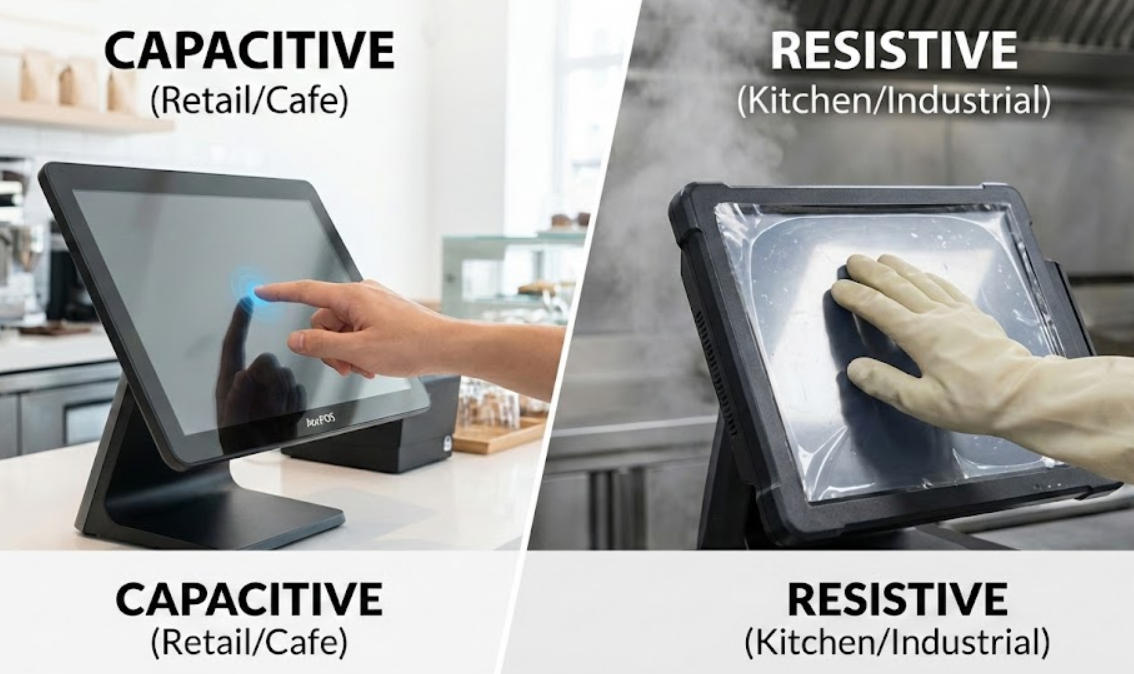
    If you’ve ever been stuck behind a checkout counter during a holiday rush, you know that the last thing you want to fight with is your screen. You tap, nothing happens. You tap harder, and suddenly the system registers three clicks at once. Usually, that frustration comes down to one technical detail: the type of touchscreen your POS uses. When you're looking through the AonPOS product catalog, you’ll see two terms pop up constantly—Capacitive and Resistive. They might look the same when the power is off, but in the middle of a busy shift, they perform very differently. The Modern Favorite: Capacitive Screens Think about your smartphone. That smooth, effortless glide is thanks to capacitive technology. These screens don't care how hard you press; they react to the tiny electrical charge in your skin. For a modern retail boutique or a high-end cafe, a capacitive model like the AonPOS AP15 is usually the gold standard. Why? Because it’s built with a solid glass front. It feels premium, it’s incredibly responsive, and it supports "multi-touch" gestures. If your staff needs to pinch-to-zoom on a complex floor plan or flick through a long inventory list, capacitive is the way to go. The Durability Factor: Since the top layer is hardened glass (often rated 7H), it’s tough to scratch. You can wipe it down with glass cleaner a hundred times a day, and it’ll still look brand new. The Old-School Workhorse: Resistive Screens Now, let’s talk about the "press-firmly" screens. Resistive technology relies on physical pressure. There are actually two flexible layers with a tiny gap between them; when you push, they touch, and the computer registers the coordinate. You’ll find this tech in models like the AonPOS APM06. It might feel a bit "dated" compared to an iPhone, but it has a massive hidden advantage: it is input-agnostic. If you’re running a commercial kitchen, your chefs likely have wet hands, flour on their fingers, or are wearing thick latex gloves. A capacitive screen will often ignore a gloved finger, but a resistive screen doesn't care. It’ll respond to a stylus, a gloved hand, or even the edge of a credit card. The Real-World Breakdown Feature Capacitive (The "Glass" Screen) Resistive (The "Pressure" Screen) Touch Style Light, effortless touch Needs a deliberate press Glove Friendly? No (unless special conductive gloves) Yes, works with any glove Clarity Crystal clear and bright Slightly duller due to the extra layers Cleaning Easy to sanitize; liquid-proof Sensitive to sharp objects and chemicals Which one should you actually buy? It really comes down to your "work uniform." If your employees are working with bare hands in a clean environment—like a clothing store, a pharmacy, or a bar—go with a Capacitive AonPOS system. It’s faster, the screen lasts longer because it’s made of glass, and it gives your business a more modern "tech-forward" feel. However, if your POS is going to live in a greasy kitchen, a dusty warehouse, or a place where staff must wear gloves, Resistive is the practical choice. It’s a tool built for utility over aesthetics. It might need to be replaced a bit sooner than a glass screen if it gets heavily scratched, but it will work every single time someone presses it with a gloved thumb. Quick FAQ Q: Can I use a regular pen on my AonPOS capacitive screen? A: No. Capacitive screens require something conductive (like your finger). If you want to use a pen, you’ll need a resistive screen or a specialized capacitive stylus. Q: Is one screen type more waterproof than the other? A: Generally, capacitive screens (like the AonPOS AP15) are easier to seal completely because the front is a single sheet of glass. This makes them highly resistant to spills and easy to spray down and wipe.
  • Fanless vs. Fanned POS Systems: Which Is More Durable for Your Business?
    Fanless vs. Fanned POS Systems: Which Is More Durable for Your Business? Jan 11, 2026
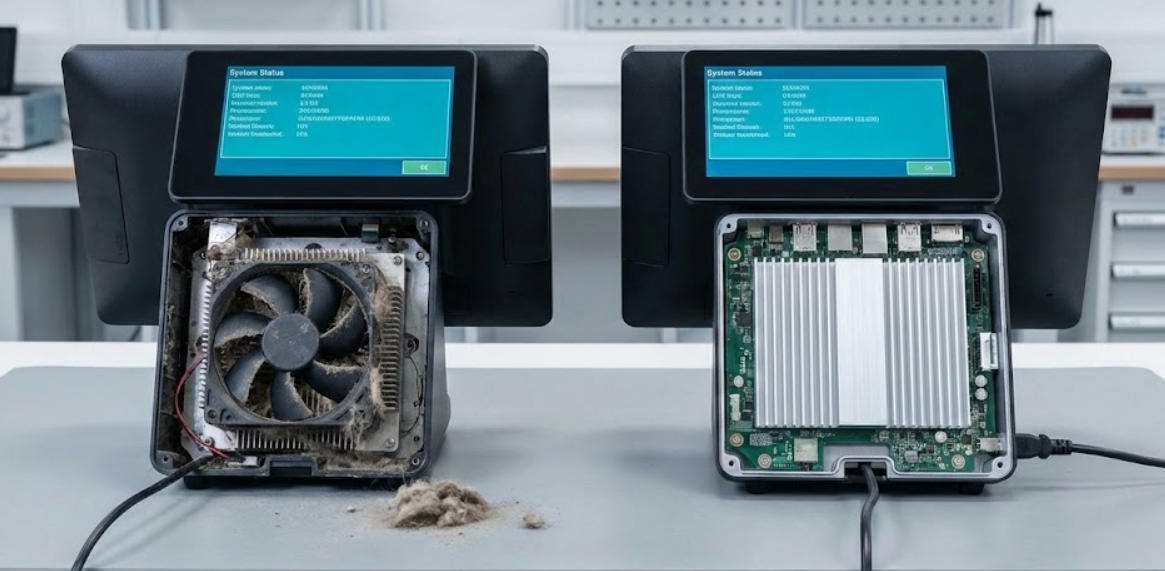
    When you’re in the middle of a lunch rush or a holiday sale, the last thing you want to think about is the thermal physics inside your checkout counter. But the truth is, how your POS system breathes—or doesn’t—will eventually determine how long it lives. At the heart of the hardware world, there’s a long-standing debate: Do you go with a traditional fanned unit, or do you switch to a modern fanless design? After years of helping businesses at Aonpostech find the right fit, we’ve seen that the answer usually depends on your environment, not just the specs on a box. The "Moving Part" Problem Think about the last time you looked at the back of an old desktop computer. It’s usually caked in gray dust. In a fanned POS system, a small mechanical fan spins thousands of times per hour to pull cool air over the processor. The problem? It’s also pulling in everything else. If you run a bakery, that fan is sucking in flour. If you run a busy restaurant, it’s pulling in atomized cooking grease. Eventually, that fan slows down, gets loud, and stops. When the fan dies, the processor "throttles"—meaning your software starts lagging—or worse, the motherboard fries. This is why, for 90% of our retail and hospitality clients, we recommend a fanless architecture. Why Fanless is the "Rugged" Choice A fanless machine, like our Aonpos AP14, doesn't "inhale." Instead, it uses passive cooling. The entire chassis acts as a giant radiator, pulling heat away from the CPU and dissipating it through the aluminum casing. Silent Operation: There’s no constant hum. This is a game-changer for high-end boutiques, spas, or quiet cafes. Lower Maintenance: You don’t need to vacuum out vents every three months. You just wipe the screen and go. Sealed Reliability: Because there are no air intake holes, these units are much better at surviving the humid, greasy, or dusty conditions found in a real-world business. Does "Fanless" Mean "Less Powerful"? This is the most common question we get. Five years ago, the answer might have been yes. But in 2026, processors like the Intel J4125 (a staple in the Aonpos line) have become incredibly efficient. They provide snappy performance for Windows-based POS software without generating enough heat to require a fan. However, if your business is doing more than just taking orders—say, you’re running a massive local database, high-end video displays, or complex ERP software—you might need the raw horsepower of an Intel Core i5 or i7. These chips usually do need a fan to stay cool. In those cases, we suggest looking at dual-screen setups like the Aonpos AP15D. If you need that level of power, just be prepared for a bit more scheduled maintenance to keep those fans clean. The Durability Verdict If we’re talking pure, long-term durability in a tough environment (kitchens, outdoor kiosks, or busy retail), fanless is the winner. By removing the fan, you remove the most common mechanical point of failure. You’re left with a solid-state machine that is built to sit on a counter and work for years without complaining. Which one is right for you? Go Fanless if you want a "set it and forget it" machine that can survive flour, grease, and dust. Go Fanned only if your software is so heavy that you absolutely require the high-wattage power of an i-series processor. At Aonpos, we’ve engineered our terminals to handle the heat, regardless of which path you choose. If you’re tired of hardware that chokes after a year of hard work, it might be time to look at a fanless upgrade.
  • Which CPU offers the best performance for POS machines?
    Which CPU offers the best performance for POS machines? Jan 09, 2026
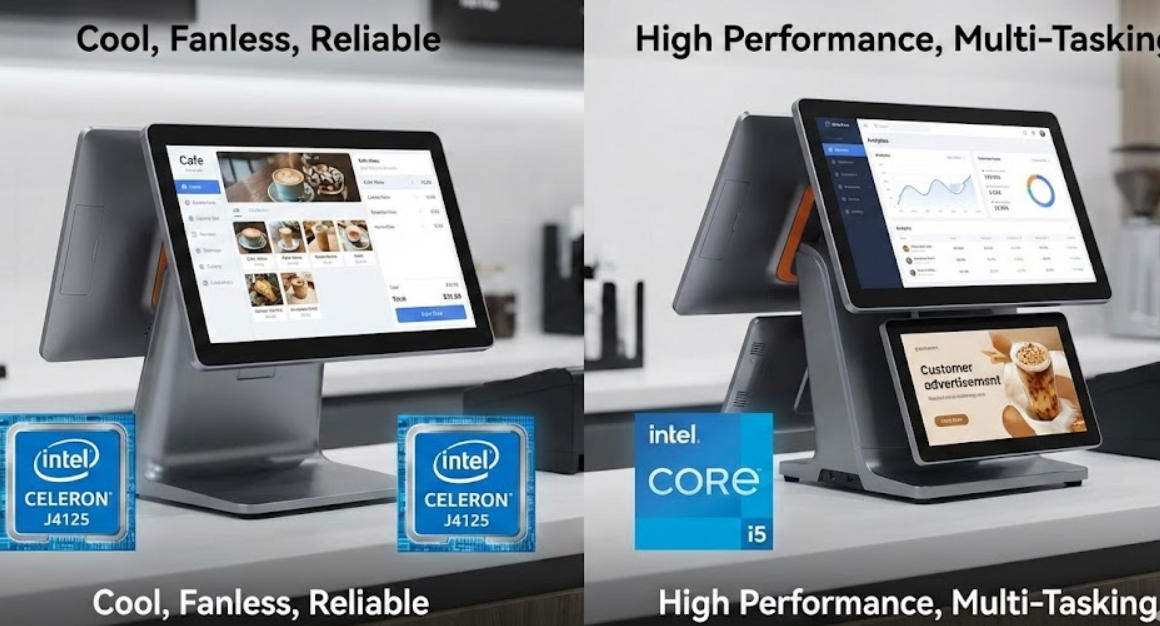
    If you’ve ever stood at a checkout counter watching a cashier tap a frozen screen while a line of customers grows restless, you know that POS performance isn’t just a technical spec—it’s a business lifeline. When it comes to the "brain" of your terminal, choosing the right CPU is a balancing act between raw speed, heat management, and long-term reliability. So, which CPU actually offers the best performance for a POS machine in today's market? The answer isn't "the fastest one available." It’s the one that matches your specific workflow. The Reliable Sweet Spot: Intel® Celeron J4125 For 80% of retail and restaurant businesses, the Intel J4125 is the undisputed champion. If you look at the Aonpostech product lineup, you’ll see this chip featured frequently, and for good reason. It’s a quad-core processor that handles Windows 10 and 11 with ease. It doesn't draw much power, which is the "secret sauce" for POS longevity. Because it stays cool, manufacturers can build fanless systems. In a busy kitchen or a retail shop with dust and fabric fibers, a fanless design means there are no moving parts to clog up and fail. You get a silent, stable machine that can run for years without an internal cleaning. The Powerhouse Choice: Intel® Core™ i3 and i5 If your business does more than just "ring up items," you need to step up to the Core i3 or i5 series. Here’s when the extra horsepower actually matters: Multi-Tasking: Are you running a local database, a loyalty program, and third-party delivery apps (like UberEats or DoorDash) all on one screen? Dual Displays: If you use a high-resolution 15-inch customer-facing screen to show advertisements or videos (like the Aonpostech AP15D), a Celeron might stutter. An i5 ensures those videos play smoothly while the cashier continues to work. AI and Analytics: Modern POS software often uses real-time analytics to suggest upsells. This requires a bit more "muscle" to keep the interface snappy. Why Architecture Matters More Than Clock Speed In the world of POS, we care more about "Total Cost of Ownership" than benchmark scores. A CPU might be fast, but if it requires a massive cooling fan that sucks in flour or grease, it’s a liability. Aonpostech terminals use industrial-grade motherboards and aluminum alloy housings. This isn't just for looks; the metal body acts as a giant heat sink for the CPU. This allows processors like the J4125 or even optimized i5 chips to perform at their peak without "thermal throttling"—the annoying slowdown that happens when a CPU gets too hot. Common Questions About POS Performance 1. Is a faster CPU always better for my POS? Honestly? No. A high-end gaming-grade CPU would generate too much heat for a slim POS housing. The "best" performance comes from "Embedded" or "Mobile" class chips (like the J series or U series) because they are designed to stay on 24/7 without overheating. 2. How much RAM should I pair with my CPU? A great CPU is wasted if it doesn’t have enough memory. For a J4125 system, we recommend at least 8GB of RAM. This allows the CPU to swap between your sales software and your inventory backend without the dreaded "spinning wheel" of lag. 3. Does the CPU affect payment processing speed? Not directly. Payment processing is usually limited by your internet speed or the encryption hardware in your card reader. However, a slow CPU will make the app feel sluggish, making it seem like the payment is taking longer than it actually is. 4. Why do many POS systems still use "older" Celeron chips? It's about stability. In the POS world, we value Long-Term Support (LTS). These chips are guaranteed to be manufactured for 7 to 10 years, ensuring that if you buy 10 machines today and need one more in three years, the hardware and software drivers will be identical. The Bottom Line If you want the best performance for a standard retail or cafe environment, go with the Intel J4125. It’s the most cost-effective, reliable, and "cool-running" option. However, if you are running a high-end restaurant with dual screens and integrated AI tools, investing in an Intel Core i5 system is a smart way to future-proof your business.
  • How to Enable and Configure the Barcode Scanning Module on Android POS Terminals?
    How to Enable and Configure the Barcode Scanning Module on Android POS Terminals? Jan 05, 2026
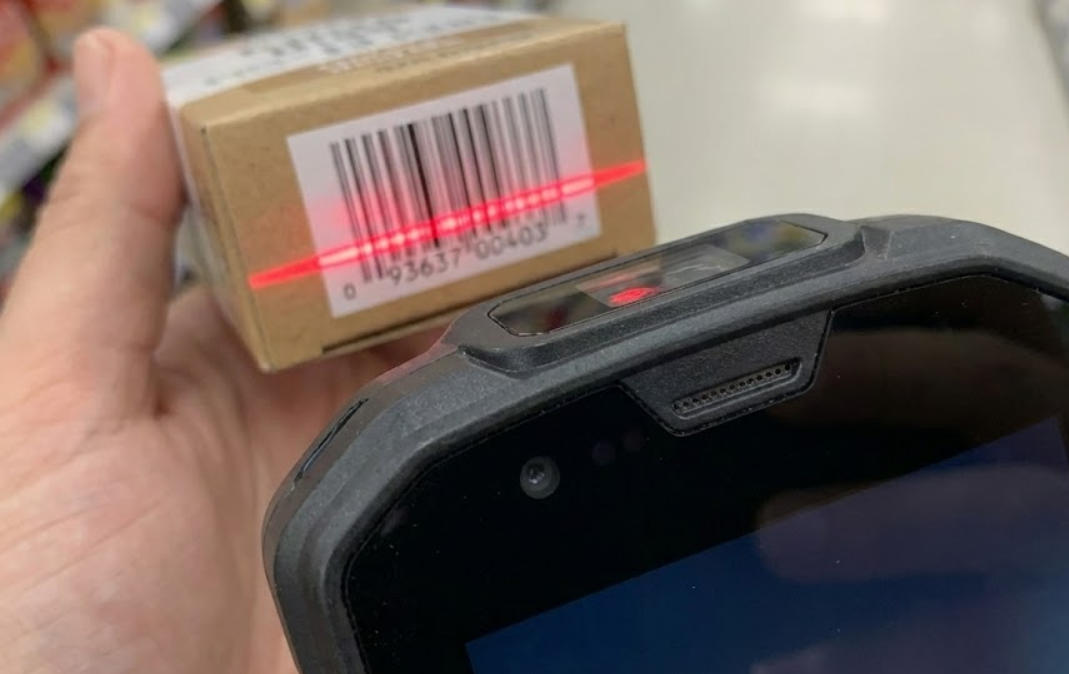
    Nothing is more frustrating than unboxing a powerful new piece of hardware (like an Aonpostech handheld terminal) only to find that the barcode scanner can't “communicate” with your software. The good news? This is rarely a hardware failure. In most cases, the scanning module simply needs to be “woken up” and told how to send data to your application. Here's how to get it set up in just a few minutes. 1. Find the “secret” scanning application On a regular smartphone, you can use the camera. But on a professional Android POS machine, the barcode scanning engine is a separate piece of hardware. You won't find the option to control it in the standard Android “Settings” gear icon. Instead, look for a pre-installed application in your app drawer. Its name is usually something like “Scanner,” “Scan Demo,” or “Barcode Input.” On Aonpostech devices, this app is your control center. Open it, and you'll likely see a large switch labeled “Enable Scanner.” Switch it to the “On” position. 2. “Keyboard Wedge” technique Most people get stuck here. You scan the barcode, the laser fires, you hear a beep… but nothing happens on the screen. This is because the scanner is sending data, but your POS software isn't “receiving” it. To fix this, find the “Output Mode” in your scanner settings and change it to “Keyboard Wedge” (sometimes also called “Keyboard Emulation”). The principle behind this is that it deceives the Android system into believing the scanner is a physical keyboard. When scanning a barcode, the device immediately “inputs” the numbers into the active text box. It is compatible with almost all web-based or third-party POS applications on the market. 3. Formatting data (pressing the “Enter” key) In the retail industry, efficiency is crucial. You certainly don't want to have to manually click the “Confirm” button on the screen for each item after scanning its barcode. In the scanner settings, find the “Terminator” or “Suffix” option and set it to CRLF or Enter. This way, every time you scan an item, the system will automatically “press the Enter key” for you, directly moving to the next item. 4. Troubleshooting: When the laser does not emit If the software is enabled but the scanner still does not light up, please check the following three things: Power-saving mode: When the battery level is below 15%, the Android system will automatically cut off power to “extra” hardware. Please plug in the power supply and try again. App permissions: Ensure that the scanner app has permission to access system hardware. Conflict: If you have two different scanning applications installed, they may compete for control. Please stick with the factory-default Aonpostech utility. Frequently Asked Questions Q: Can my Aonpostech device scan QR codes or regular barcodes?Most modern Aonpostech terminals utilize 2D imaging technology. Unlike traditional laser scanners that can only read lines, these imagers can read QR codes, PDF417, and even damaged or blurry labels. Simply ensure that “2D barcode recognition” is enabled in the settings. Q: My scanner is too loud. Can I turn off the beeping sound?Yes. In the scanner utility application, look for “Notifications” or “Feedback” settings. You can turn off the beeping sound, or, if you are working in a quiet environment, you can switch it to vibrate-only mode. Q: Why can the scanner read the barcode, but the displayed numbers look incorrect?This is usually a “character encoding” problem. Please check your settings and make sure they are set to UTF-8. If you are scanning international products, some default settings may incorrectly interpret certain characters. Q: Can this scanner work with my web browser?Absolutely. Simply enable keyboard wedge mode, open Chrome or any other browser, click on the search bar, and then scan. The data will appear instantly.
  • Dual-Screen vs. Single-Screen POS Systems: Which is Best for Your Business?
    Dual-Screen vs. Single-Screen POS Systems: Which is Best for Your Business? Jan 04, 2026
    If you've recently visited a high-end boutique or a bustling local cafe, you may have noticed this: those clunky, single-screen cash registers are disappearing. In their place are sleek, dual-screen systems that look more like high-tech workstations than credit card terminals.But if you're a business owner considering hardware (such as the Aonpos Professional Series), you might be wondering: Is that second screen just for show, or can it actually help me increase my profits? Let's take a look at the practical differences between single-screen and dual-screen setups, and why that extra piece of glass might be the best employee you've ever hired.Let's look at the practical friction between single-screen and dual-screen setups, and why that extra piece of glass might be the best employee you've ever hired. Single-screen setup: Simple, but is it enough? Single-screen POS systems (such as the compact Aonpos AP14) are a classic choice. They are small, affordable, and fully functional. If you run a small pop-up shop or bar with limited space, this is often your preferred option.However, this "simplicity" also hides a cost. In a single-screen environment, customers are essentially kept in the dark. They have to trust that the cashier has entered the correct price, that discounts have been applied, or that they haven't accidentally double-clicked on that expensive bottle of wine. This lack of transparency can lead to awkward "Wait, how much is that?" moments, slowing down the checkout process and causing unnecessary friction. The advantages of a dual-screen system: Transparency and building trust When you adopt a dual-screen system—such as the Aonpos AP15D—everything changes. You'll have a 15.6-inch main touchscreen for your employees and a secondary display screen facing the customer.This is why a second screen—the customer-facing display (CFD)—is actually very important: Accuracy at a glance: Customers can see the results during the item scanning process and spot errors before payment is processed. This not only saves employees the hassle of processing refunds but also speeds up the checkout process. Build professional credibility: When customers see a clear and concise list on a dedicated screen, it creates a psychological sense of "trust." This makes your business appear more professional, modern, and trustworthy. "The Silent Salesperson": The second screen is an excellent display space while customers wait for their receipts. You can use it to showcase QR codes for loyalty programs, weekend promotions, or even new menu items. This marketing method feels unobtrusive and doesn't come across as pushy. Choosing the right hardware to get the job done is crucial. If you prefer a dual-monitor setup, you can't just pick any monitor. You need one that can handle the demanding workload of a busy retail day.Aonpos's modern terminals utilize high-performance Intel processors (such as the J4125 or the more powerful Core i5), meaning the software won't lag even when there's a long queue of customers. Furthermore, with a 10-point capacitive touchscreen, the interaction experience is as smooth as using a smartphone—no more needing to tap the screen three times for a button to respond, as was the case before. Which model should you buy? If you have a minimalist setup, such as a coffee kiosk or a mobile "food truck"-style business, where counter space is your biggest constraint, then choose a single-screen display.If you run a retail store, a full-service restaurant, or any business that wants to build a customer loyalty program, choose a dual-screen system. Customers can enter their phone number or email address on their own screen, which is a huge advantage for data collection. Frequently Asked Questions: What You Need to Know Will a second screen make the POS system harder to use? Absolutely not. The second screen is usually "mirrored" or controlled by the same software. Your employees won't need to do any extra work; the system handles the display automatically. Can I display advertisements on the customer screen? Yes! This is one of its biggest advantages. Most modern POS software allows you to upload images or videos to the customer-facing screen, turning your checkout counter into a digital billboard. What if you don't have enough space? Models like the Aonpos AP05 are specifically designed to be "all-in-one." They cleverly integrate the screen, printer, and even a scanner into a compact unit, allowing you to have full POS system functionality without taking up the entire counter space. Ultimately, the POS system is the last point of contact before customers leave. A dual-screen system ensures this final interaction is transparent, professional, and efficient. If you're considering an upgrade, take a look at the Aonpos POS system series to find a system that matches your store's style.
  • How to integrate a third-party payment SDK into a self-service kiosk?
    How to integrate a third-party payment SDK into a self-service kiosk? Jan 03, 2026
    As the demand for unattended retail grows, businesses are shifting toward self-service models to reduce overhead and improve customer experience. However, the bridge between a self-service kiosk and a secure payment gateway is often the most complex part of the build. This guide provides a technical deep-dive into integrating third-party payment SDKs into kiosk environments, featuring insights on high-performance hardware like the AonpoTech APK06 Series. Frequently Asked Questions: Kiosk Payment Integration 1. What is the best architecture for kiosk payment integration? For self-service kiosks, the Semi-Integrated Architecture is the industry standard. How it works: Your kiosk application sends a transaction request (amount, currency) to the payment terminal via an SDK or API. The terminal handles the sensitive card data and encryption, returning only a "Success" or "Failure" token to the kiosk. Why it’s better: It keeps your primary kiosk software out of "PCI Scope," meaning you don’t have to undergo rigorous security audits for your entire app, only for the payment terminal itself. 2. How do I bridge a web-based kiosk app with local payment hardware? Many modern kiosks, such as those built on AonpoTech’s Intel-based PK1851 terminals, run on web technologies (HTML/React). To communicate with a local USB or Serial card reader: Use a Local Agent: Run a small background service (in C# or Node.js) on the kiosk OS that listens for WebSocket requests from your web app and translates them into hardware commands for the SDK. Browser-to-Hardware: Utilize the WebUSB or WebSerial API if your payment provider supports direct browser communication. 3. Does my kiosk hardware affect the SDK integration? Absolutely. The stability of your integration depends on the OS compatibility and peripheral support of the kiosk. Android vs. Windows: AonpoTech kiosks support both RK3568 (Android) and Intel J4125/i5 (Windows) configurations. Ensure your chosen SDK provides a library for the specific OS you are deploying. Modular Expansion: Kiosks like the AonpoTech APK06 feature modular designs, allowing you to easily swap or add NFC readers, thermal printers, and QR scanners, which must all sync with your SDK logic. 4. How do I handle "Unattended" payment compliance? Integrating a mobile SDK (like a standard phone-based reader) is often a violation of terms for kiosk use. You must use a solution specifically certified for Unattended Use. Ensure the hardware is PCI PTS (Pin Transaction Security) certified. The SDK must support "Heartbeat" monitoring to alert your server if the payment module is disconnected or tampered with. 5. Can I integrate QR Code payments and Card payments in the same SDK? Most modern SDKs (like Adyen or Stripe) support "Unified Commerce." However, if your kiosk uses a dedicated QR scanner (standard in AonpoTech models), you may need to handle the QR scan via a local hardware driver and then send the payload to your payment gateway’s API for authorization. Step-by-Step Technical Integration Workflow Hardware Selection: Start with an industrial-grade kiosk like the AonpoTech Smart Digital Kiosk. Its capacitive touchscreen and built-in 80mm thermal printer provide the necessary interface for payment receipts. SDK Initialization: Load the provider’s library (e.g., .dll for Windows or .aar for Android) and initialize the connection to the payment terminal using the COM port or IP address. The Handshake: Implement a "System Check" on startup to ensure the printer has paper and the payment terminal is online before allowing a user to start an order. Transaction Loop: * Kiosk app calculates the total. App calls the SDK startTransaction(amount) method. SDK takes over the screen or terminal UI for PIN entry/Tap. App receives a JSON response with the transaction ID. Receipt Generation: Use the kiosk’s integrated thermal printer to print the transaction record, ensuring you include the mandatory fields required by the payment provider (AID, TVR, etc.). Why Choose AonpoTech for Your Payment Kiosk Project? Integrating software is only half the battle; the hardware must be resilient. AonpoTech’s self-service kiosks are designed with developers in mind: High Performance: With options up to Intel i7 and 16GB RAM, your kiosk app and payment SDK will run without lag. Modular Flexibility: The APK06 series responds to modern business needs by allowing different modules for different solutions (NFC, Scanning, Printing). Industrial Durability: Waterproof and modern designs ensure that your payment terminal remains functional in high-traffic environments.
  • Why Does My Self-Service Kiosk Keep Restarting?
    Why Does My Self-Service Kiosk Keep Restarting? Jan 01, 2026
    In the world of automated retail and hospitality, a self-service payment kiosk is the backbone of efficiency. However, few things are more frustrating for both business owners and customers than a machine that frequently restarts or enters a "boot loop." Frequent reboots don’t just cause downtime; they lead to lost revenue and a poor brand image. In this guide, we explore the primary technical reasons behind kiosk instability and how choosing industrial-grade hardware, such as Aonpostech Self-Service Kiosks, can prevent these issues. 1. Unstable Power Supply and Voltage Fluctuations The most common cause of spontaneous restarts is the power source. Unlike consumer PCs, a self-service payment kiosk often houses multiple peripherals (thermal printers, card readers, scanners) that all draw power simultaneously. The Issue: If the input voltage drops (a "brownout") or surges, the Power Supply Unit (PSU) will restart the system to protect the motherboard. The Solution: Always use a dedicated Online UPS. Aonpostech kiosks are designed with industrial-grade power management to handle the high-current demands of integrated payment components. 2. Thermal Throttling and Overheating Self-service kiosks often operate 24/7 in enclosed spaces or high-traffic outdoor environments. The Issue: If dust clogs the internal fans or the thermal paste on the CPU dries out, the system temperature will spike. To prevent permanent damage, the motherboard initiates a thermal shutdown. Aonpostech Advantage: High-quality kiosks utilize superior heat dissipation designs and industrial cooling fans to ensure stable performance even in demanding environments. 3. Peripheral Hardware Conflicts A kiosk is a complex ecosystem of hardware. A faulty receipt printer, a short-circuiting QR scanner, or a loose USB connection can send "noise" back to the motherboard. The Issue: A "USB Device Not Recognized" error or a driver crash for a peripheral can trigger a Blue Screen of Death (BSOD), resulting in a reboot. Maintenance Tip: Regularly check internal connections. Ensuring your hardware is sourced from a reliable manufacturer like Aonpostech ensures that all modules (printers, card readers, and screens) are fully compatible and rigorously tested. 4. Software Memory Leaks and OS Updates Sometimes the hardware is perfect, but the software is at fault. The Issue: If the kiosk application has a "memory leak," it will slowly consume all available RAM until the operating system crashes. Additionally, forced Windows or Linux updates may trigger restarts at the most inconvenient times. The Solution: Optimize your kiosk software and disable "Auto-Updates" in favor of scheduled maintenance windows. 5. Faulty RAM or SSD Storage If your kiosk restarts during specific tasks—like processing a payment or loading a video—the internal memory (RAM) or the storage drive (SSD) might be failing. The Issue: A "bit flip" in a faulty RAM stick or a bad sector on an SSD will cause an immediate system crash. Pro Tip: Use industrial-grade SSDs and RAM. Aonpostech utilizes high-performance internal components to ensure long-term stability under heavy daily use. Quick Troubleshooting Table Symptom Likely Cause Suggested Action Restarts during printing Power Supply (PSU) overload Check PSU wattage/Replace printer Restarts in the afternoon Overheating Clean dust filters / Check ventilation Restarts after a card swipe Peripheral Driver Conflict Update card reader drivers Infinite boot loop OS Corruption / SSD Failure Reinstall OS or replace SSD Conclusion: Reliability Starts with Hardware While software tweaks can help, the stability of a self-service payment kiosk ultimately depends on the quality of its build. Choosing a professional partner like Aonpostech ensures your business is powered by industrial-grade motherboards, robust enclosures, and certified peripherals designed to withstand the rigors of 24/7 operation. Are you looking for a more reliable self-service solution? Explore the full range of Aonpostech Payment Kiosks and reduce your downtime today.
  • Android vs. Windows Self-Service Kiosks: Which Is Right for Your Business?
    Android vs. Windows Self-Service Kiosks: Which Is Right for Your Business? Dec 28, 2025
    In the modern landscape of retail and hospitality, the choice of a self-service kiosk is no longer just about the screen size—it is about the "brain" powering the experience. As businesses transition to automated checkout, the debate between Android-based and Windows-based systems has become a pivotal decision for ROI. At AonPostech, we provide industrial-grade hardware for both ecosystems. Here is a deep dive into the technical and operational differences to help you choose. 1. Technical Architecture & Performance The primary difference lies in the hardware architecture and processing power. Android Kiosks: Typically powered by ARM-based processors (like the Rockchip RK3568 found in our APK06 series). They are highly energy-efficient, generate less heat, and offer a "mobile-native" feel that mirrors the smartphones your customers use daily. Windows Kiosks: Utilize x86 architecture (Intel Core i3/i5/i7). These are "powerhouse" machines designed for heavy multitasking. If your kiosk needs to run complex local databases or high-end graphics alongside a POS system, Windows is the industry standard. 2. Total Cost of Ownership (TCO) When scaling a fleet of kiosks, cost is a major factor. Android: Generally offers a lower entry price. Since the OS is open-source, there are no heavy licensing fees. Maintenance is often streamlined via Mobile Device Management (MDM) software. Windows: Requires a paid license (Windows 10 IoT or Pro). While the upfront cost is higher, Windows offers a longer lifecycle for industrial models—often 5 to 7 years of stable operation in high-traffic environments. 3. Comparison Table: At a Glance Feature Android (e.g., AonPostech RK3568) Windows (e.g., Intel i5 Series) Best For QSR, Ticketing, Simple Retail Pharmacy, Grocery, Legacy ERP User Interface Intuitive, Touch-First Powerful, Multi-Window Licensing Low to None High (Standard License Fees) Connectivity Cloud-Native, Bluetooth/Wi-Fi Legacy USB, Serial, On-Premise Security App Sandboxing Enterprise-Grade (Active Directory) Why Hardware Quality Matters: The AonPostech Advantage Regardless of the OS, the hardware must be built for 24/7 "Always-On" reliability. AonPostech kiosks, such as the AP022 and APK06, are engineered with: Modular Design: Swap printers, scanners, or NFC modules in minutes without replacing the whole unit. Industrial Cooling: Aluminum alloy and ABS plastic chassis prevent thermal throttling, a common cause of system crashes in "budget" consumer-grade kiosks. High-End Peripherals: Integrated 80mm thermal printers and high-sensitivity QR scanners ensure a zero-friction checkout. Frequently Asked Questions (FAQ) Is Android or Windows more secure for handling payments? Both are secure, but they handle data differently. Android uses "sandboxing," which isolates the payment app from the rest of the system, making it very hard for malware to spread. Windows offers deeper integration with enterprise security tools like Windows Defender and BitLocker, which is preferred by IT departments managing large corporate networks. Can I run my current Windows POS software on an Android kiosk? No, they are built on different codebases. However, most modern software providers now offer web-based or cloud-native versions of their POS, which run perfectly on Android systems. If you have a legacy system that must run locally, a Windows-based model like the AonPostech PK1851 is the correct choice. Which system is easier to maintain remotely? Android is the winner for remote management. Using MDM tools, you can push app updates, lock the screen into "Kiosk Mode," and troubleshoot devices across thousands of locations from a single dashboard. While Windows supports remote desktop and Group Policy, it often requires more technical expertise to manage at scale. Do AonPostech kiosks support customization? Yes. We specialize in OEM/ODM services. Whether you need a 15.6-inch desktop unit or a 32-inch floor-standing ordering terminal, we can customize the CPU, RAM, and peripheral modules to fit your specific OS choice and branding. Final Verdict: Which should you choose? Choose Android if you are a Quick Service Restaurant (QSR) or boutique retail store looking for a cost-effective, sleek, and easy-to-manage solution. Choose Windows if you are a large-scale enterprise with complex security requirements or need to integrate with legacy hardware that requires specific Windows drivers. Ready to upgrade your customer experience? Explore the AonPostech Kiosk Range to find the perfect match for your business.
  • Does the Aonpos Self-Service Kiosk Support a Wired Network Connection (RJ45)?
    Does the Aonpos Self-Service Kiosk Support a Wired Network Connection (RJ45)? Dec 27, 2025
    In the world of automated retail and hospitality, internet stability is the backbone of a successful customer experience. One of the most frequent questions we receive from IT managers and business owners is: "Does the Aonpos self-service kiosk support a wired network connection via RJ45?" The short answer is yes. All Aonpos self-service payment kiosks are designed with a standard RJ45 Ethernet port to ensure your business remains online and secure 24/7. Why Wired Connectivity (RJ45) Matters for Kiosks While Aonpos kiosks come equipped with high-speed built-in Wi-Fi, a wired LAN (Local Area Network) connection is the industry gold standard for several critical reasons: 1. Unmatched Transaction Security For kiosks handling sensitive financial data, security is paramount. A wired RJ45 connection is significantly harder to intercept or "spoof" than wireless signals, making it the preferred choice for PCI-compliant payment environments. 2. Reliable 24/7 Uptime In busy environments like shopping malls or quick-service restaurants, Wi-Fi signals often suffer from interference. A hardwired connection eliminates "dead zones" and signal drops, ensuring that your Aonpos APK07 or AP022 model never misses a transaction. 3. Gigabit Speeds for Large Data Transfers Whether you are updating high-resolution digital signage content or syncing inventory across a cloud network, our kiosks support 10/100/1000 Mbps Gigabit Ethernet. This ensures lag-free performance even during peak hours. Technical Specifications & Port Location Aonpos kiosks feature a modular I/O design. On most models, such as the Aonpos APK07 Smart Digital Kiosk, the RJ45 port is located within the internal cable management compartment. Port Type: Standard RJ45 (8P8C) Network Standard: IEEE 802.3 OS Compatibility: Supports Windows (7/10/11) and Android (7.1 to 11.0) configurations. Cable Recommendation: We recommend using Cat6 shielded cables to prevent electromagnetic interference (EMI) from nearby electronic equipment. Installation Tip: Hidden Cable Management To maintain the sleek aesthetic of your storefront, Aonpos kiosks are designed with internal routing paths. The Ethernet cable can be fed through the base of the stand or the rear of the wall mount, keeping the wires hidden from the public and protected from accidental disconnection. Frequently Asked Questions (FAQ) Can the kiosk use Wi-Fi and Ethernet simultaneously? Yes, the system allows you to configure a "Failover" mode. You can set the wired RJ45 connection as your primary source and use the built-in Wi-Fi as a backup to ensure zero downtime. Does Aonpos support Power over Ethernet (PoE)? Standard models require a dedicated DC power supply (included). However, because Aonpos offers OEM/ODM customization, we can work with your engineering team to integrate PoE solutions for specific project requirements. Which Aonpos models have the RJ45 port? The RJ45 LAN port is a standard feature across our entire self-service line, including the AP022 series, APK06, and the 27-inch APK07 ordering kiosk. Stable connectivity is not just a feature; it’s a business necessity. By supporting RJ45 wired network connections, Aonpos provides a professional-grade solution that combines speed, security, and reliability. Ready to upgrade your business? Explore the Full Range of Aonpos Payment Kiosks Here or Contact our Technical Team for custom networking specifications.
1 2 3

ما مجموعه 3الصفحات

تحتاج مساعدة؟ دردش معنا

ترك رسالة
لأي طلب معلومات أو دعم فني ، املأ النموذج. جميع الحقول التي تحمل علامة النجمة * مطلوبة.
يُقدِّم

بيت

منتجات

whatsApp

اتصال